
Limit the responsibilities and permissions of collaborators on PeopleSpheres to organize your HRIS
Index
Create a Role without Relation
For more information and examples
Get started
Are you at the launch stage of PeopleSpheres?
Do you already have operational roles and want to modify them?
Whatever the situation, the first step is to put the situation on paper before starting to manipulate the roles in PeopleSpheres.
- To create your roles from scratch -> jot down on a paper your current organization, who sees what, who should be able to modify what.
- If you are working from an existing situation -> it is strongly advised to do the same exercise, this time by starting from the existing roles.
Relation fields
Several Roles are Relation-driven (and some aren't - skip ahead to Roles outside Relations), which means that a collaborator's permissions are derived from a particular role in relation to another collaborator.
Examples:
- a manager is another collaborator’s manager.
- An HR oversees all or some of the employees.
The first step is therefore to create the Relations field which will allow to determine this relation (check Fields).
There are two types of Fields Relations:
- Manager Relation fields
- HR Relation fields
Manager Relation fields are individual fields. The relation is completed in the collaborator’s profile. This corresponds to a hierarchical approach.
Entering a collaborator in the field will push the role to them.
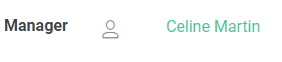
In this example, Céline Martin is the user’s Manager. Céline Martin thus acquires Role Manager permissions to configure.
HR Relation fields are organizational. The relation cannot be completed on the collaborator’s profile. This is a functional approach.
Assigning the Role is what will push the collaborator into the Relation.

In this example, Céline Martin is the user’s HR. This information cannot be modified in the field, as Céline acquires the relation in the HR role.
Please note: Manager and HR fields are named Owner and Administrator when the PSO is not a User.
Important to remember
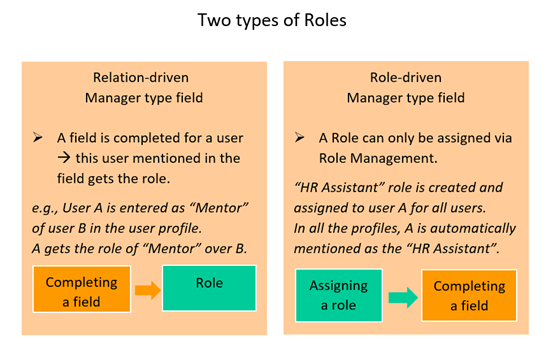
How to choose if I need to create a Manager or HR relation?
- I will manager mass attribution for this Relation --> HR
- I will assign this relation individually --> Manager
Roles
The Role widget is available for collaborators who have "Role Management" permissions.
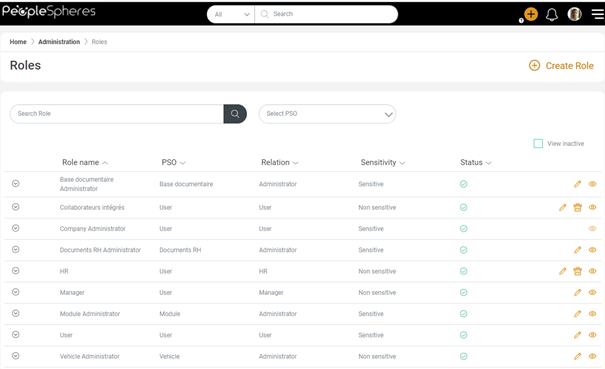
The  button allows you to quickly check how an existing role is composed.
Create a Role
Click on 
Enter a role name, a description and the PSO, choose the concerned relation.
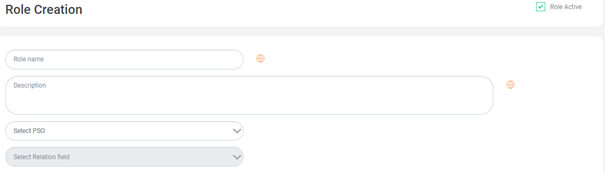
If the relation is Manager:
There is no need to enter the permission holder or the target population (these are the people entered in the user profile fields).
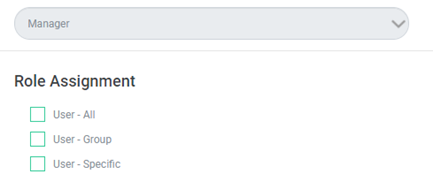
However, it is possible to split the access using the Role Assignment.
For example:
The company MyCompany is present in several countries including France and Spain.
In these two countries it uses the Manager field.
However, the MyCompany administrator can split the Manager France and Manager Spain permissions by creating two roles:
- a "Manager - France" role using the "Manager" relation field but assigned using a "France" group.
- a "Manager - Spain" role based on a "Spain" group
If the relation is HR:
It is necessary here to identify the user holding the role and the target population.
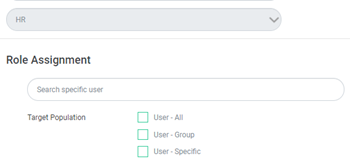
The field will then be completed with the user's name in the profiles of the target population.
An HR role can only be assigned to one person in the same population.
It is however possible to assign several people to the same HR role, on different populations. You can therefore create the Payroll Manager role and assign it to 4 people:
- Payroll manager 1 / South-East group
- Payroll manager 2 / South-West group
- Payroll manager 3 / North-East group
- Payroll manager 4 / North-West group
Domains
Domains can be used to address the need for partitioning in a multi-entity organization.
To set up a role organization based on Domains, you can contact the PeopleSpheres Support Team.
Sensitivity
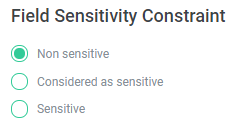
Sensitivity constraints determine the maximum sensitivity (check the Fields guide) to which the role gives access to.
For example:
Myriam has an "HR Trainee" role, which gives her the same access as her tutor "HR Assistant" except for the sensitivity which is limited to "Considered as sensitive" (she will not have access to the "Sensitive" fields).
Features
Roles allow you to customize access to the different features of PeopleSpheres.
The complete list of features is available in Annexes here.
For example:
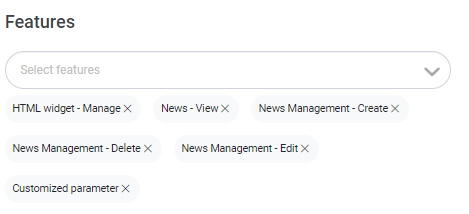
Christophe is "communication manager" at MyCompany, his role gives him access to the features allowing him to manage widgets, news, and the design of PeopleSpheres.
Modules
Access to different modules on PeopleSpheres is determined via Roles.
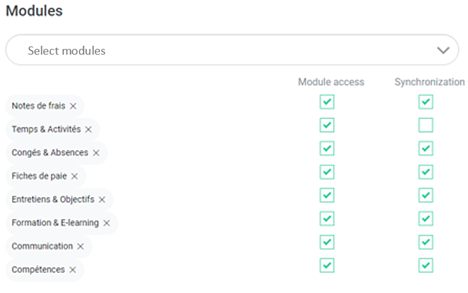
To give access to a module, it must first be open (active on PeopleSpheres). Contact your consultant if this is not the case.
There are 2 possibilities to add a module in a role:
- Module access: Role collaborators will have access to the button to connect to the module
- Synchronization: role population will be synchronized in the module.
For example:
MyCompany uses 2 payroll modules for 2 different populations:
- Role A will synchronize on Module A
- Role B will synchronize on Module B
- Role HR will have access to the 2 modules
Default Roles
PeopleSpheres is delivered with 4 default roles:
- Administrator with several specifics:
- They have all permissions on PeopleSpheres.
- This role cannot be modified, deactivated, deleted, or duplicated.
- It is based on the Administrator Group. It cannot be deleted.
- User role that is assigned to all the users on PeopleSpheres. It cannot be deleted.
- Manager role cannot be deleted.
The Manager role is used for different connections with third party modules. It is recommended to use it (check with your Modules Consultant).
- HR role is created by default for your HR. It is the only default role that can be deleted. It can be replaced with customized roles if required.
Roles outside relation
It is possible to create a role without assigning a relation to it.
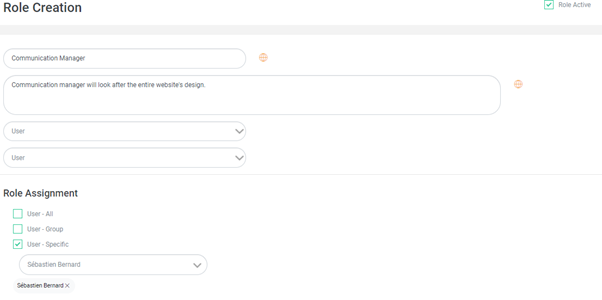
For example: I want to create a "Communication Manager" role dedicated to a marketing person in charge of design, news, and widgets.
To create a role outside relation, do not choose a relation when creating the role, but select "User". The rest – assignment and role parameters – do not change compared to a role linked to a relation.
More information
Roles can be used to manage other types of User records.
For this, click on PSO.
Examples for Roles
- CSE
|
Goal |
Assignment |
|
Allow CSE members to access documents related to their jobs. |
CSE groups |
|
Specific configuration |
|
|
- Access BDES module - Access permission to CSE domain allowing access to field required for this job - Access to specific reporting widgets, as well as to “Reports and Dashboards” |
|
- HR Manager
|
Goal |
Assignment |
|
Allow IT managers to manage collaborator’s material |
As per requirements |
|
Specific configuration |
|
|
- Access to IT domain backed up in the concerned fields |
|
- Communication Manager
|
Goal |
Assignment |
|
Allow Communication Manager to manage different shared documents. |
Administrator |
|
Specific configuration |
|
|
- Access to all Documents PSO permissions |
|
- Manager PSO
Some examples "Vehicle manager", "Sales Manager" (PSO: Client records), "Project Manager")
|
Goal |
Assignment |
|
Allow managers to manage their duties along with HR |
Outside relation / Administrator PSO relation |
|
Specific configuration |
|
|
- All access permissions specific to the concerned PSO. |
|