Learn how to create a Rule for Monitoring and some examples of Rules.
Goal: Monitoring allows you to create triggers, i.e., dynamic actions that will only take place if an event occurs.
- Go to the Monitoring widget
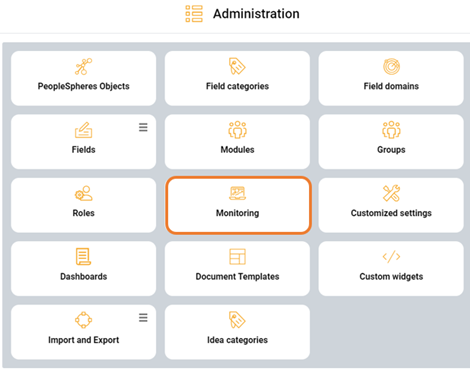
- Create a Rule
-
To create a new Rule, you must enter:
- A name
- description
- Select the concerned PSO
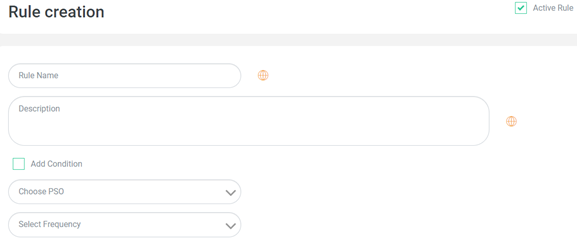
Please note: The trigger will only be effective from 1am GMT, on its first trigger day.
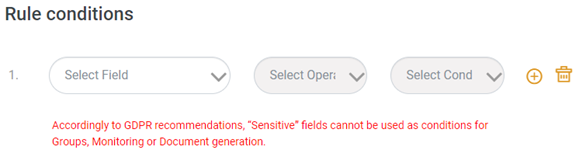
- Create a Condition (IF...) by checking Add Condition. Select the Field on which the Condition must apply.
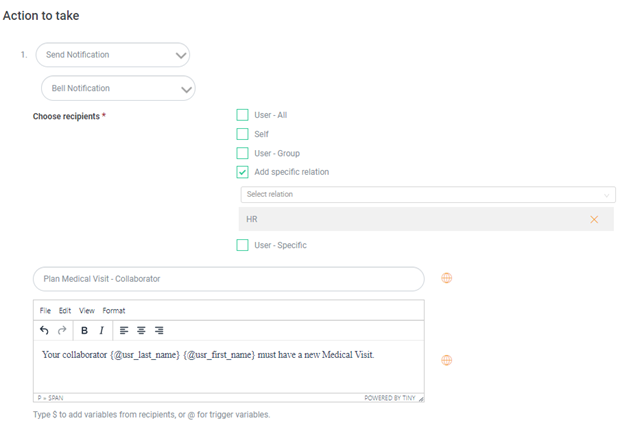
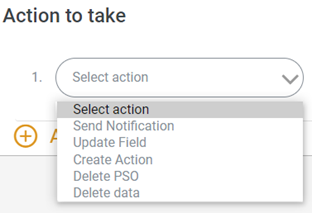
- Assign an Action to this Rule (THEN...)
-
Click on
 at the bottom of your screen.
-
Examples
Please note: If you have several Legal Entities, create a Form for each entity or site. Assign it to Users - Group as target population. Select the corresponding sites and entities. For this, you must have created Groups beforehand using Group Management.
If not, add a Condition for the concerned legal entity:

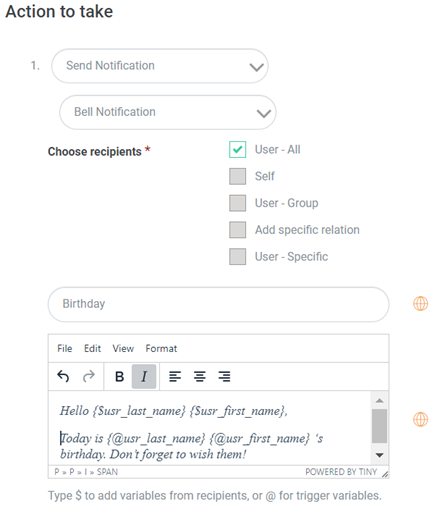
Birthday Annoncement
Send a notification to the collaborators if it's the birthday of a member in the company.

On the Spot Evaluation
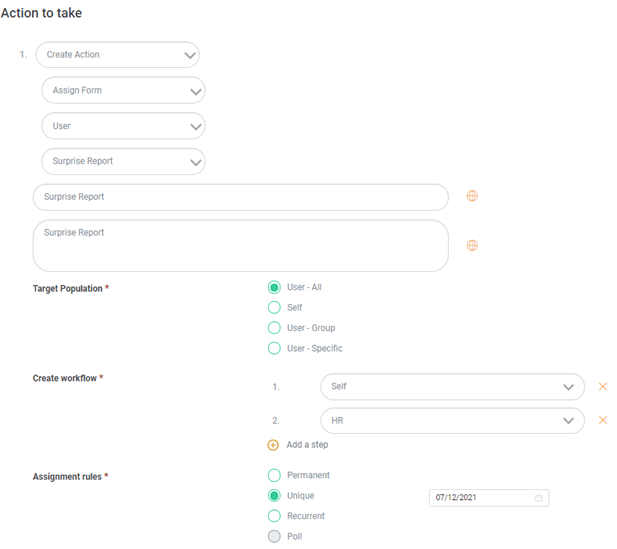
Assign an "On the Spot Evaluation" form to new collaborators on their first day.
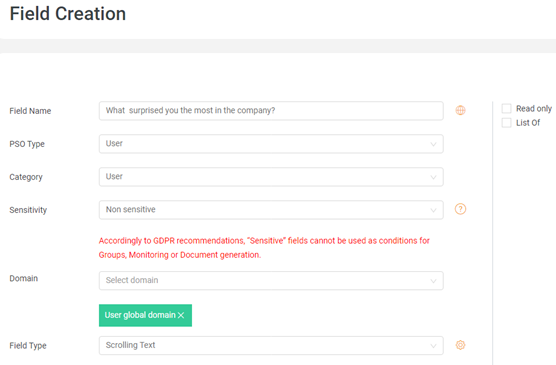
- Create a Field
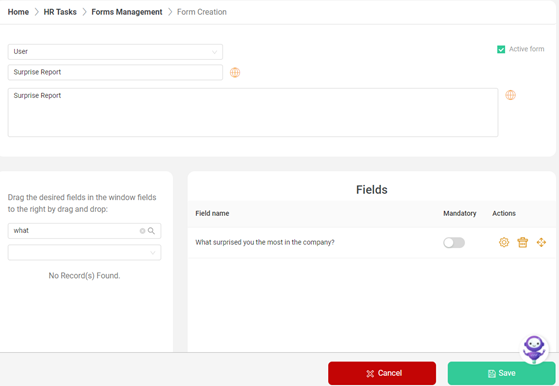
- Create a Form
- Create Rule for Monitoring

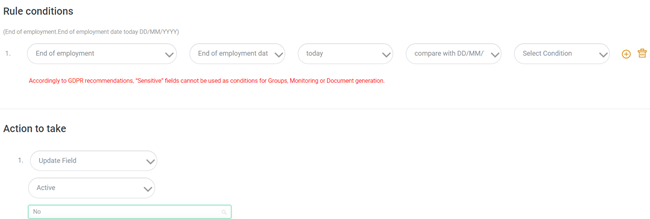
Update Data
Update data in certain fields as per a defined condition
Medical Visits
Notify HR when the employee's last medical examination was two years ago