
Use the Monitoring feature to notify collaborators of certain events or triggers
Explanation
Some PeopleSpheres notifications are automatic (For example: validated form, accepted leaves).
It is also possible to configure your own notifications, either by email or directly on PeopleSpheres.
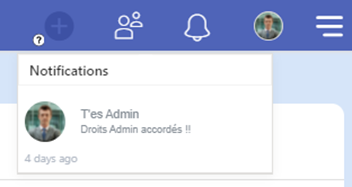
How to configure a notification
To configure a notification, go to “Monitoring” feature.
Monitoring permissions are compulsory to access this feature.
Enter a title and a description. Choose the trigger frequency. For notifications, a daily trigger is recommended.
Tip: choose a long-term date to avoid having to update the monitoring rule frequently.
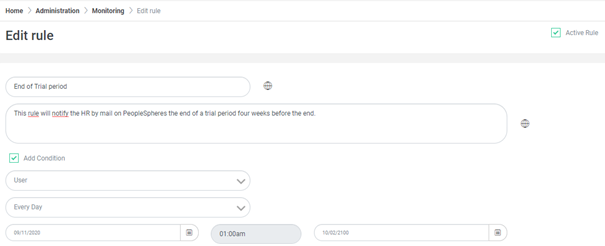
Select trigger rule for the notification.
For example: if the trial period end is in 4 weeks.
Send an email
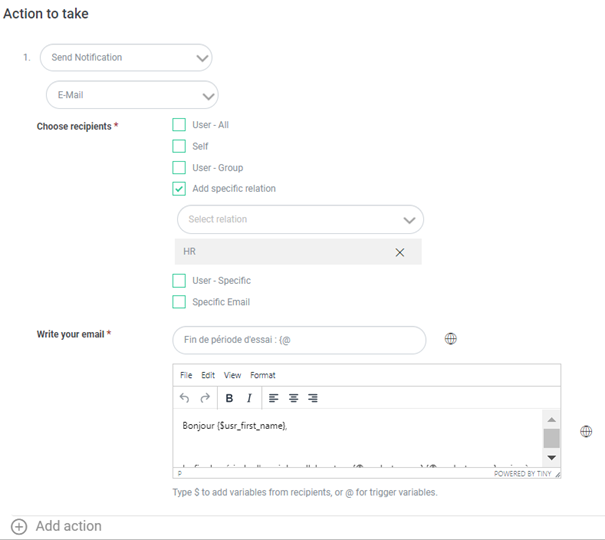
Select a notification email.
Select recipients:
- All: All the users
- Self: concerned user by the trigger rule
- Triggered user’s relation: for example, their manager
- A specific user
Email body
Insert tags in the title and content of the email by typing "$" or "@" on your keyboard.
- $ allows you to insert a field to be replaced by the recipient's name.
- @ allows you to insert a field to be replaced by the concerned user’s name.
For example:
Object: Trial period end for @first name @last name
Hello $first name
Trial period for @first name @last name ends on @date.
If you use "specific email address" and insert a tag in the email, the recipient's tags will not be recognized.
Send a notification
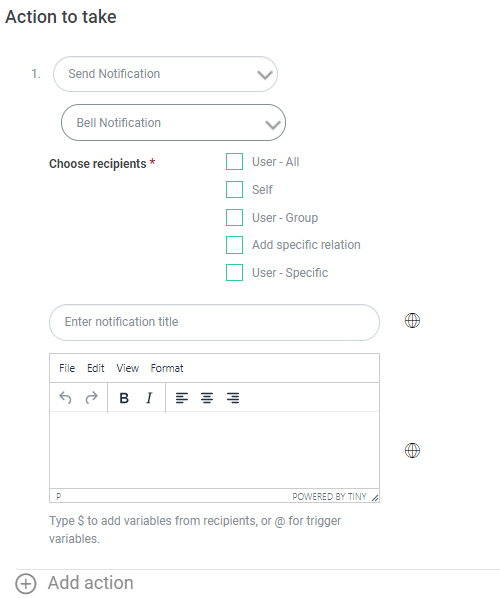
The configuration rules remain the same as for an email.
Some examples
- Birthday
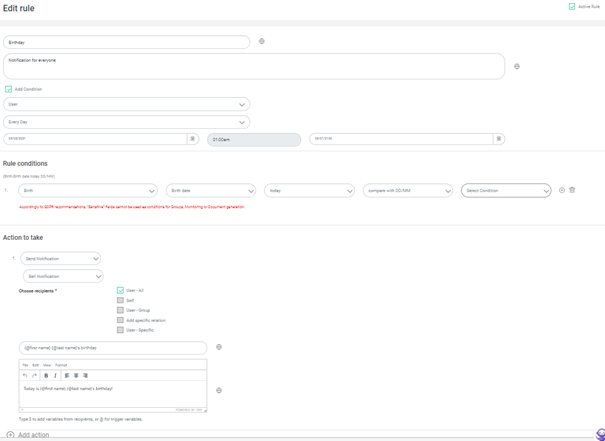
If some collaborators do not want to make their birthday public, you can create a field "I do not authorize MyCompany to communicate my birthday" to be checked by the user and add a rule "only trigger if box is not checked".
- Trial period end
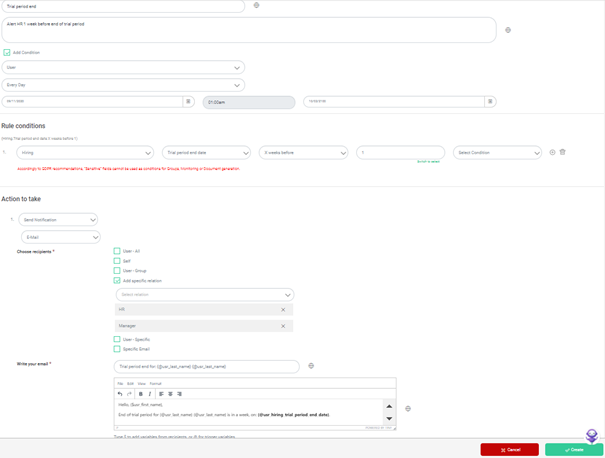
This is a relatively simple case that could be made more complex: send trial period renewal forms, secondary monitoring on the second trial period, etc.
- Modified fields
-
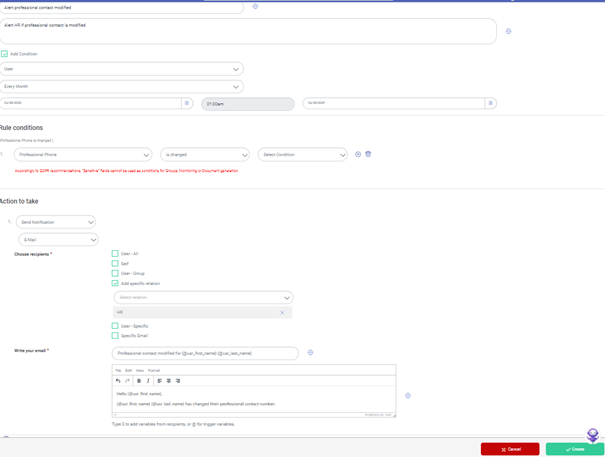
You can send an alert if any field is modified.
-
The “is changed” rule triggers if the field was modified since the last verification.
For example:
- daily trigger: the field was modified since the last trigger yesterday
- hourly trigger: the field was modified since the last trigger an hour ago