
Discover how to export your data
The Export feature allows you to create, extract or share reports with your collaborators.
It can be enabled for a user from their Role.
For this, add “Connector - Export - Create”, “Edit”, “Delete” and “View”.
This permission can be declined by a PSO.
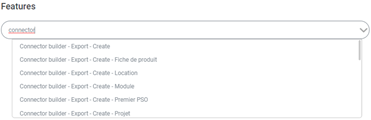
For example: I want to allow the HR Assistant to perform export, only on Users.
I can give the permission "Connector - Export - Create - User" - "Connector - Export - Edit - User" - "Connector - Export - Delete - User", "Connector - Export - View - User".
A Project Manager may only have Export permissions on the PSO Projects.
1. Create a report
 The user can access the Export feature using the “Import and Export” button, then selecting the “Export” from the burger button.
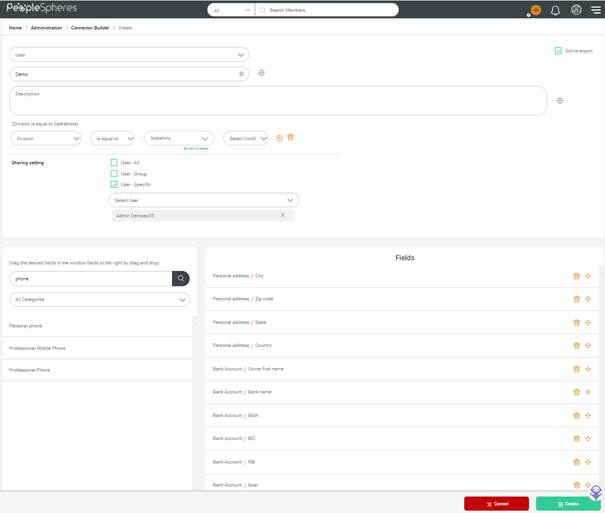
Select the PSO for which you wish to export the data. Enter a title and description. Select the fields that you want to export using drag and drop.
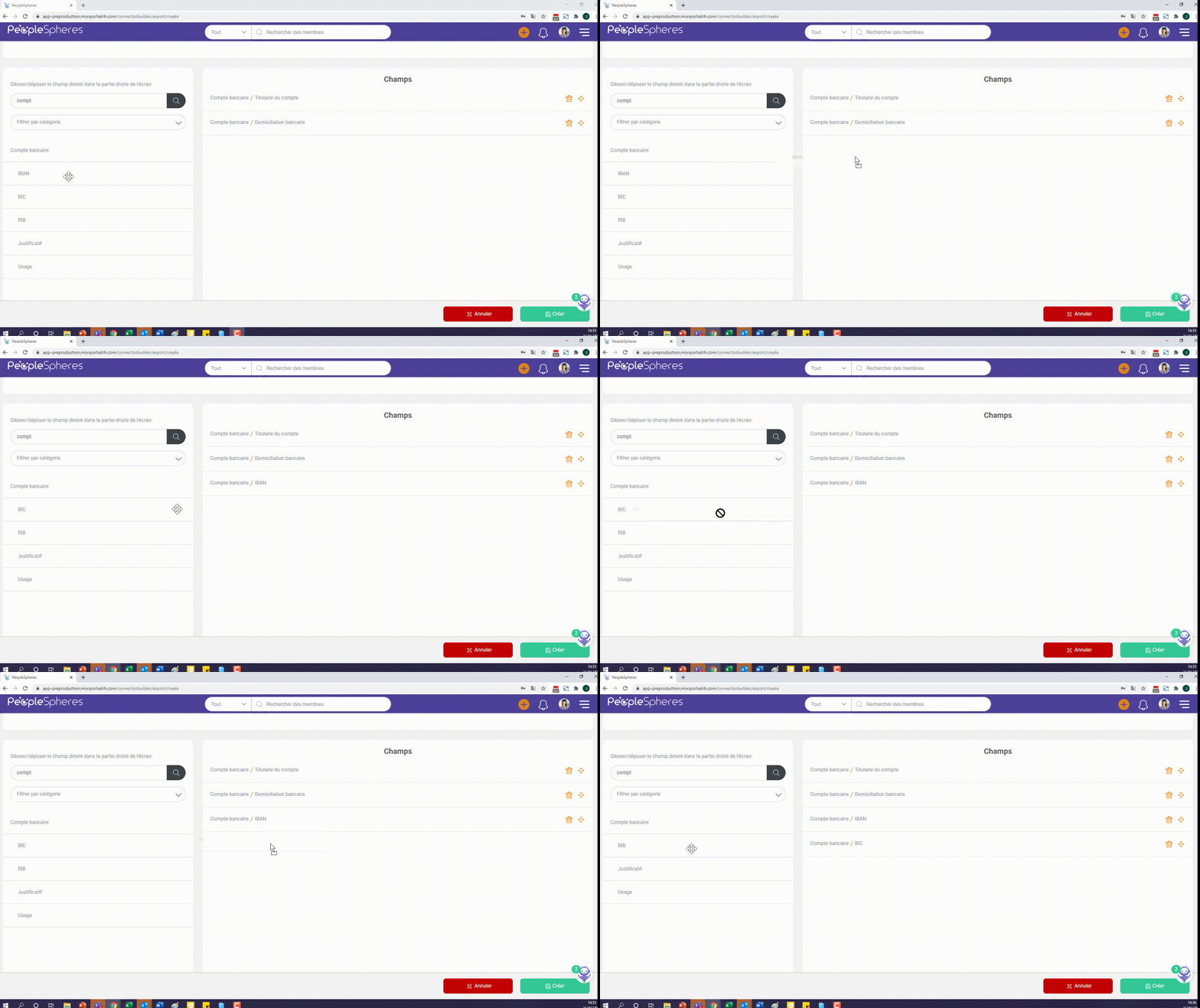
The  icon lets you reposition the order of the fields in your report.
2. Limit an Export
Limit an Export using a condition.
For example: Celine wants to extract the bank accounts of her collaborators, but only those of the Operations department. She can add the following condition:


3. Share an Export
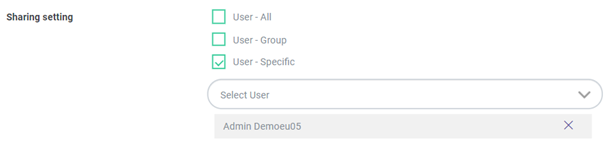
Share an export with a collaborator using the "Share setting".
The person receiving the shared export must have access to the feature.
IMPORTANT: When a report is shared and the initial reporter makes a modification, it is applied to all shared reports.
|
For example: Céline creates and shares a report with Sylvain. On his version, Sylvain modifies the report. Céline also modifies her report version after Sylvain. Céline’s modifications will replace those of Sylvain’s. |
When a collaborator receives a shared report, they can click on  to generate a version of this report to export. This version is calculated based on their permissions, and not those of the initial owner.
Only the report structure is shared, not the visibility permissions.
|
For example: Céline is the HR director, with access to Compensation fields. She shares a report containing "Fixed Salary" with Suzanne, the HR Assistant who does not have access to the Compensation fields. When Suzanne retrieves the report, she will see the "Fixed Salary" field, but it will be empty. |
File retrieval

Once the report is generated, retrieve it from the Export Management page by clicking first on  to refresh it, then on
  to download it.
The  button can be clicked on once every two hours. It also allows you to choose two file generation formats: .xlsx or .csv.
When a user generates and retrieves a report, it will only display the data they would normally have access to in a record's profile.
For example: Sylvain is an HR Assistant, with access to the export feature.
He has access to the collaborators' profiles with an HR permission, but not to the Sensitive fields.
If he builds a report containing Sensitive fields, these will appear empty in the generated file, because he did not have access to them on his colleagues' Profiles.
4. Export a “List” field
The “List” fields, that can accept several values for the same field (For example: Children), can be exported.
If the generated file is a .csv:
Several files are generated:
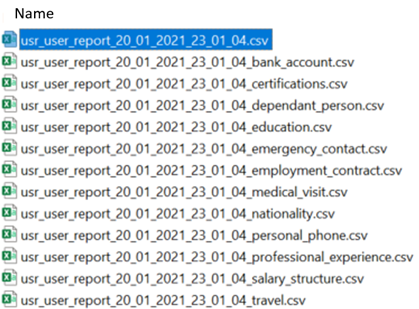
- In the main file with all the fields, the List field displays the last field value.
- One file is generated per List field, with one line per value per collaborator.
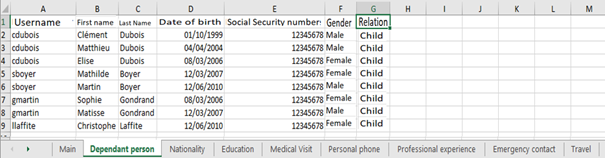
If the generated file is an .xlsx:
Only one file is generated, displaying all the fields in the main tab, then one tab per "List" field, with 1 line per value per collaborator.
TIPS AND BEST PRACTICES
- Take time to create all the reports you may need right away. In this way, you can quickly update them before retrieving them whenever required.
- Name your reports according to a nomenclature that will help you save time later.
- For shared reports, feel free to use the description to provide information about them: changes in sharing options, field additions or deletions...
- Reports contain by default all the records on the platform. Use the "Active = Yes" filter to retain only the active profiles
User Report
User Report is a default report, which includes all data from all User Profiles. It is only available to users with an Administrator role (in addition to Export permissions).
This report is updated automatically every night (in addition to being updated manually like customized reports).
SFTP deposit
All the documents generated on your Platform are also deposited on an SFTP, a secure document deposit and sharing space.
Due to GDPR legislation, data is automatically and permanently deleted from the SFTP after 30 days.
You can contact your PeopleSpheres Support to get access to your PeopleSpheres SFTP interface.