
This article will explain how to create a transcript report, that allows you to follow training on users transcripts.
In the training module, go to the menu, Reports, and Custom Reports.
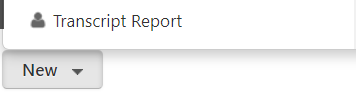
Click on New, and choose Transcript Report :
Once the Report Buiider opens up, don't forget to give your report a name and to save it! You can keep saving the report every time you make changes, and after you have finished creating it.
A transcript report allows you to extract data related to the training followed by the users (training that has been assigned to them, or requested by them, and that is on their transcript). There are fields that are specific to the transcript available on the left-hand side of the report builder :
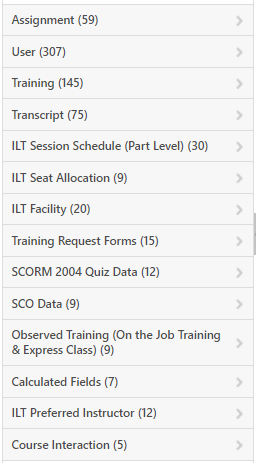
To put a field into your report, use the search bar on the left-hand side, and click its title.
- User: Find all the information about the user, such as their full name, division, location etc...
- Training: Information related to the training object, such as the training title, training type, description etc...
- Transcript: All the fields related to the training history of the user, such as start date, end date, training location etc...
- ILT Session Schedule: All the fields related to the session, such as the trainer, number of participants, subjects etc...
- SCORM 2004 Quiz Data: All the fields related to the quizzes done by users in Scorm 2004 courses, such as question descriptions, type of response, scores...
- SCO Data: Everything related to the quizzes present in other online courses, such as the name of the online courses, the highest and lowest scores etc...
- Observed Training (On the Job Training & Express Class): concerns the specific comments from Express class (written when the participants are registered), such as the name, the ID of the observer...
- ILT Preferred Instructor : All the information concerning the trainers
Add all the fields you wish to your report, and click the Refresh button  to show the data.
Best Practices
1) Exclude Events
To exclude events from your report, and therefore include only the sessions (and avoid having duplicates in the report for the event and session of the same training), you can add a filter :

In the "Field filters" tab, search for the field "Training type", and select that it is "Not Equal to" and then check "Event" in the list.
2) Show Only Completed Training
To include only Completed training in your report, you can add another filter on the report.

Select the field "Transcript Status" and choose the operator "is equal to" and then choose the status "Completed" in the list.
3) Show Training Needing Approval
To show a list of training that is waiting for approval or validation from the validation workflow, add the field "Transcript Status" and choose the operator "is equal to" and then choose the status "Pending Approval" in the list : 