
This article will show you how to assign training to users using the learning assignment tool, how to bypass approval requirements, and show you the difference between dynamic and standard assignments.
Standard Assignments
Connect to the training module and navigate to Learning Administration > Learning Assignment Tool.
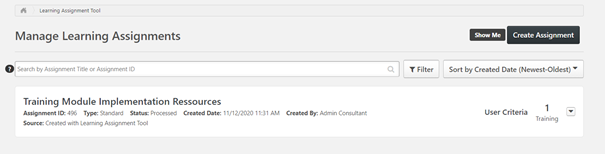
You will see the list of all the assignments that have previously been created and processed.
To create a new one, click on Create Assignment in the top right.
The learning assignment creation process has 4 main steps.
Setup
Here you shall choose what type of assignment you would like to create. Start with a standard process.
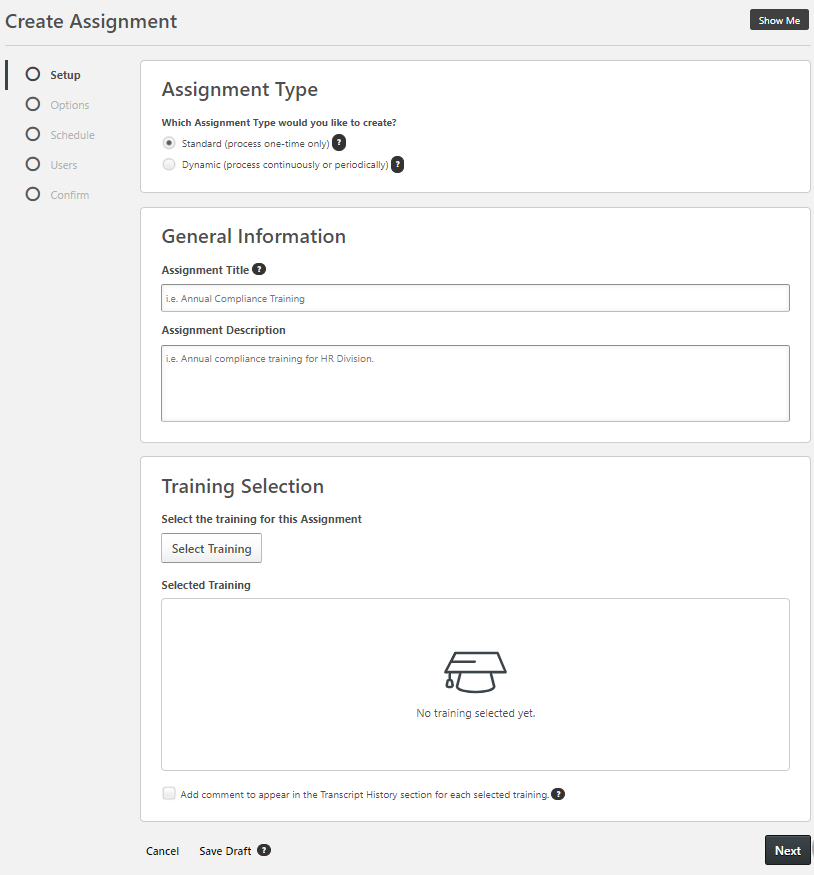
- In the General Information section, you should choose a Title and Description that will allow you to easily find the assignment if necessary.
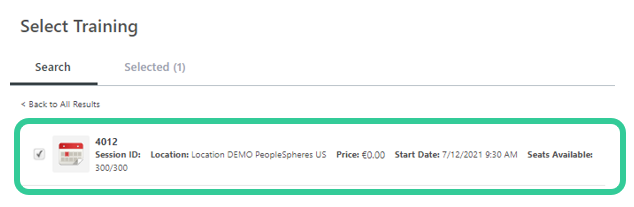
- Training Selection allows you to pick which training you would like to assign to your users.
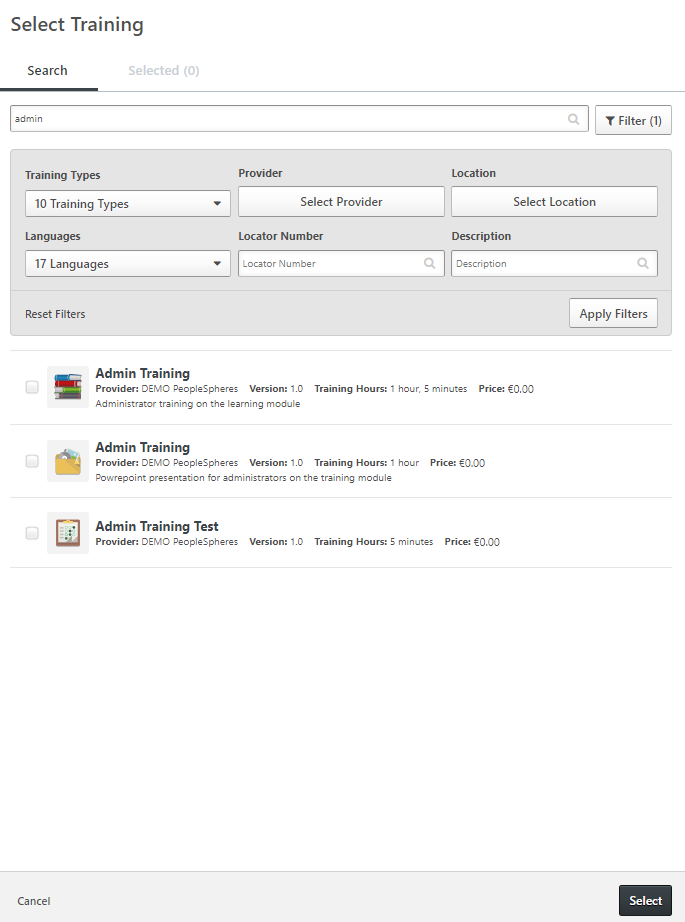
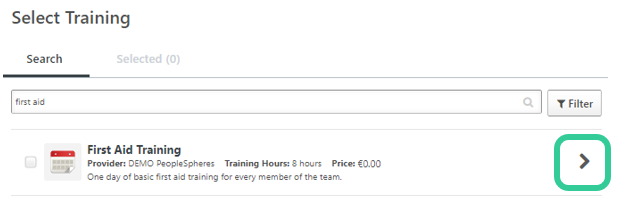
- Click the check box next to the title of the training, and then Select at the bottom right-hand side.
Options
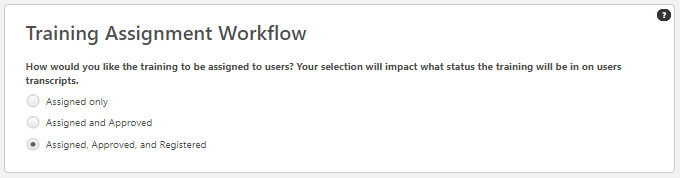
The Training Assignment Workflow allows you to bypass any workflow requirements that are in place. For example, if all training requests need the manager’s approval, you should select “Assigned, Approved, and Registered” to avoid needing the manager’s approval.
The email settings allow you to send or suppress any emails related to the training. Usually, we advise that you do not send emails, unless the users need to be notified of the training.
Click Next.
Schedule
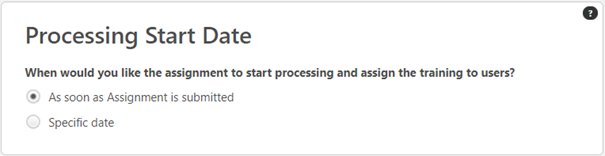
The Processing Start Date allows you to choose when the Learning Assignment should start processing and assign the training to users. If, for example, you’re assigning First Aid Compliance training to complete in January, you can choose “Specific Date”, and then select a date in January. If you would like the training to be assigned straight away, choose “As soon as Assignment is submitted”.
The training due date lets you decide by when the training must be completed.
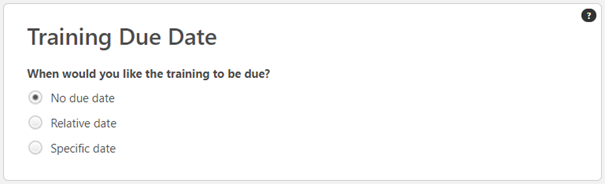
A relative date allows you to select a due date based on another date. For example, Onboarding training could have a Relative Due Date based on the initial hire date. As such, this due date would be different for each user.
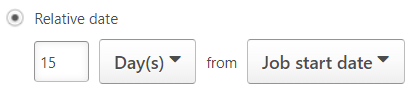
Selecting a Specific date means that all users will have the same due date for this training.
Click Next.
Users
On the Users page, you should choose who you want to include in the assignment. You can add users either by searching for them manually, or by uploading a .csv file containing one column with their usernames or email addresses.
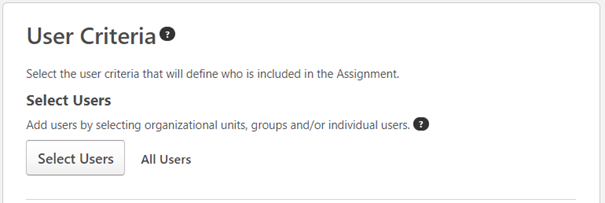
Click the Select Users button.
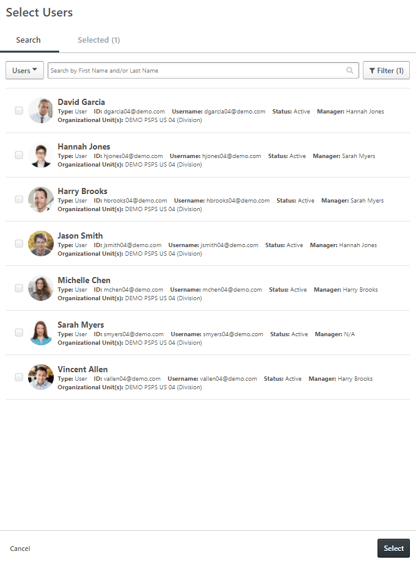
On the page that opens, you can search for the users to whom you want to assign the training.
You can use filters to refine your search.
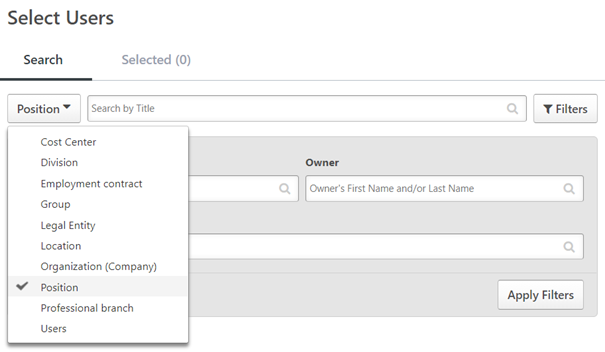
You can also choose to assign the training to an organizational unit from the drop-down list in the top right. For example, a new Sales Methods Training could be assigned to everyone in the position “Sales”.
Once the users / OUs selected, click “Select” at the bottom right-hand side of the screen.
Then, you should click “Generate Initial User List”.
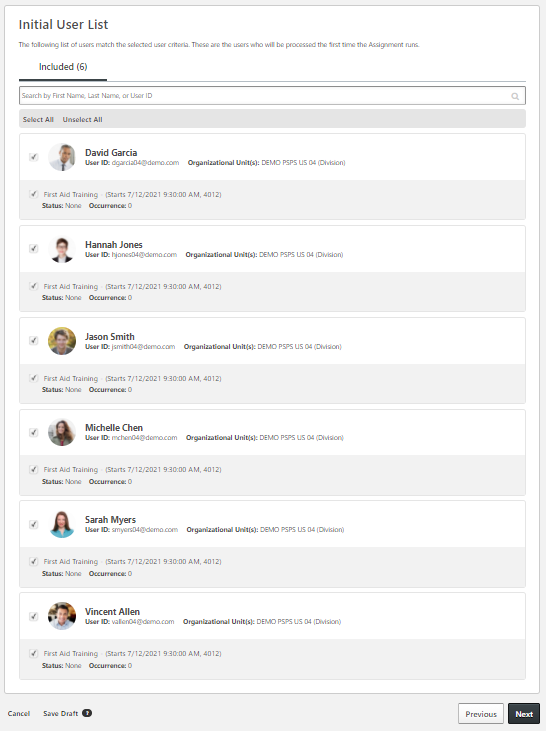
You will then see a list of all the people to whom you are assigning the training:
Click Next.
Confirm
On this page you can review all the settings that you have defined for the Learning Assignment. Once you are happy with the settings, click Submit on the bottom right-hand side of the screen. If you do not wish to Submit the assignment straight away, you can click “Save Draft”, which will allow you to come back to the assignment and finish later.
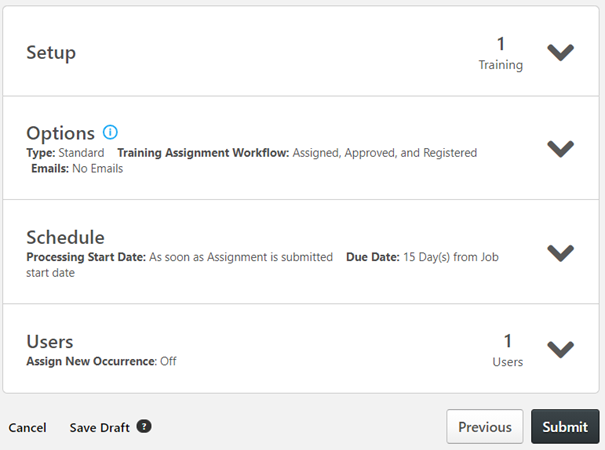
Your Learning Assignment that you just created will appear at the top of the list. It will have the status “Queued” until the assignment happens (after a few moments if you chose to assign the training straight away, or until the assignment date that you chose).
Note : Once the training is assigned, you can view it on the transcript of the user.
Dynamic Assignments
Following the same steps as a standard assignment, you create a new assignment.
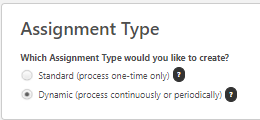
In the first step "Setup", you choose "Dynamic Assignment":
- In the General Information section, you should choose a Title and Description that will allow you to easily find the assignment if necessary.
- Training Selection allows you to pick which training you would like to assign to your users.
- Click the check box next to the title of the training, and then Select at the bottom right-hand side.
Options
With a dynamic assignment, you have the option to dynamically remove the training from the users' transcript if the users no longer meet the assignment criteria. For example, if you assign the Sales Curriculum to all Sales employees once a year, but a Sales employee changes department and becomes a Marketing employee, the training will be removed from their transcript.

Please note the second option "Remove in progress training" has to be checked to remove any training that may have been started. If this option is not checked, only Not Started training will be removed. It is not possible to restore removed training, so only activate this option if you are sure.
The Training Assignment Workflow allows you to bypass any workflow requirements that are in place. For example, if all training requests need the manager’s approval, you should select “Assigned, Approved, and Registered” to avoid needing the manager’s approval.
The email settings allow you to send or suppress any emails related to the training. Usually, we advise that you do not send emails, unless the users need to be notified of the training.
Click Next.
Schedule

With dynamic assignments, we can choose to either run the assignments daily or annually. In other terms, this is the frequency the system is going to check the assignment criteria and assign the training.
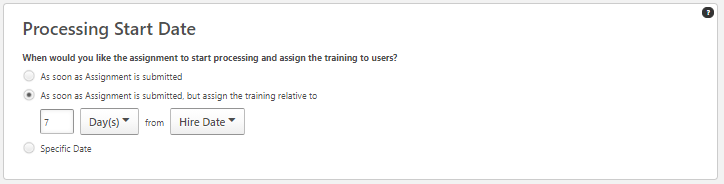
The Processing Start Date allows you to choose when the Learning Assignment should start processing and assign the training to users. If, for example, you’re assigning First Aid Compliance training to complete in January, you can choose “Specific Date”, and then select a date in January. If you would like the training to be assigned straight away, choose “As soon as Assignment is submitted”.
With dynamic assignments, we can choose to start processing the assignments straight away, but assign the trainings relative to a specific date. For example, the tool starts processing as soon as it is submitted, but the training is assigned 7 days after the user's hire date.
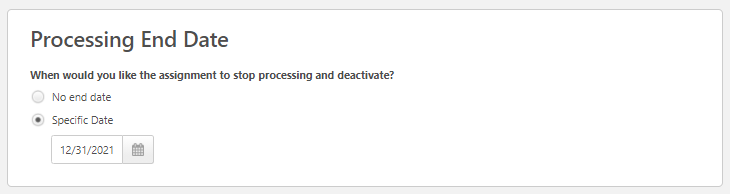
You can add a processing end date for the dynamic assignment if necessary.
The training due date lets you decide by when the training must be completed. A relative date allows you to select a due date based on another date. For example, Onboarding training could have a Relative Due Date based on the initial hire date. As such, this due date would be different for each user.
Selecting a Specific date means that all users will have the same due date for this training.
Click Next.
Users
On the Users page, you should choose who you want to include in the assignment. You can add users either by searching for them manually, or by uploading a .csv file containing one column with their usernames or email addresses.
Click the Select Users button.
On the page that opens, you can search for the users to whom you want to assign the training.
You can use filters to refine your search.
You can also choose to assign the training to an organizational unit from the drop-down list in the top right. For example, a new Sales Methods Training could be assigned to everyone in the position “Sales”.
Once the users / OUs selected, click “Select” at the bottom right-hand side of the screen.
Then, you should click “Generate Initial User List”.
You will then see a list of all the people to whom you are assigning the training:
Click Next.
Confirm
On this page you can review all the settings that you have defined for the Learning Assignment. Once you are happy with the settings, click Submit on the bottom right-hand side of the screen. If you do not wish to Submit the assignment straight away, you can click “Save Draft”, which will allow you to come back to the assignment and finish later.
Your Learning Assignment that you just created will appear at the top of the list. It will have the status “Queued” until the assignment happens (after a few moments if you chose to assign the training straight away, or until the assignment date that you chose).