
This article will show you how to modify a training curriculum
Step 1
Firstly, you need to modify or create the training objects that you want to integrate into your curriculum (materials, videos, quizzes etc.).
Step 2
Next, go to Learning Administration , Catalog, Curricula and click the Modify button next to the concerned curriculum :

You can modify certain aspects of the curriculum such as the title, without creating a new version.
To change the structure of the curriculum, go to the Structure tab :
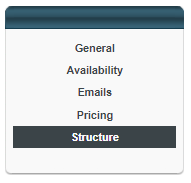
Make the necessary changes here. This is the same as creating the curriculum : you can add sections and training.
Then click on save.
If the changes you make to the curriculum mean a new version of the curriculum is created, an Options panel will open : 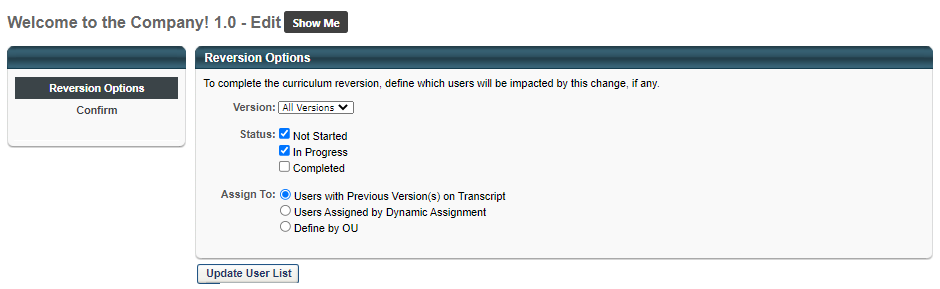
From this page, you can define who will receive the new version of the curriculum.
- Version : select the version(s) concerned by the change. If it's the first change, select 1.0.
- Status : this allows you to choose which users will be impacted based on the current status of the curriculum on their transcript
- Not Started : users who are registered to the curriculum but have not yet started it.
- In Progress : users who have started the curriculum
- Completed : users who have finished the curriculum
- Assign To : allows you to define which users will be impacted based on how the curriculum has previously been assigned
- Users with Previous Version(s) on Transcript - those with a version already on their transcript
- Users Assigned by Dynamic Assignment - those with a version that was assigned by the Learning Assignment Tool dynamically
- Define by OU - allows you to decide based on the Organizational Unit of the user (based on their Location, Position, Division etc.).
Once the criteria has been defined, you can click on Update User List to show the final list of users who will receive the new version of the curriculum.
Example : if you want to assign the new version to users who haven't started the old version of the curriculum, you would choose status "Not Started" and assign to "Users with Previous Versions on Transcript.
Click Next.
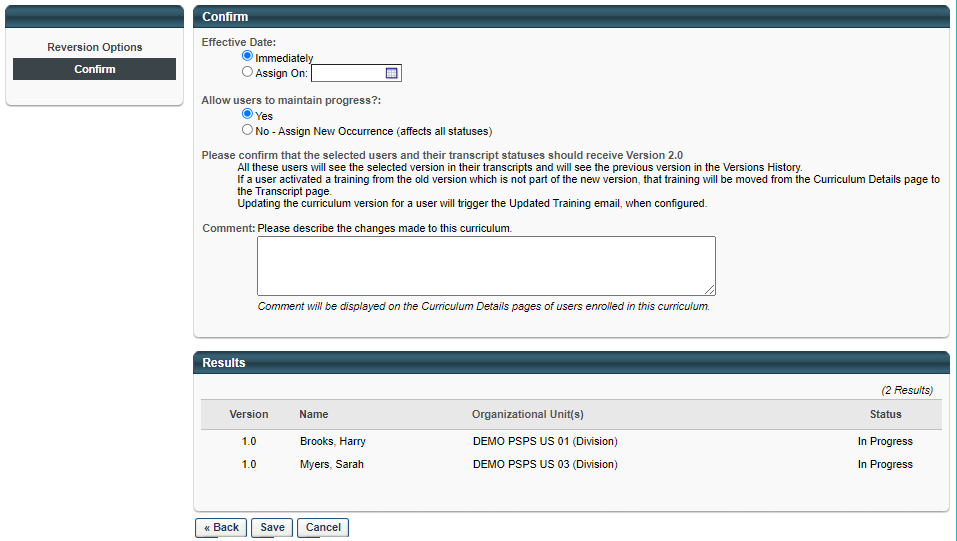
On this screen:
- Decide when you want to assign the new version
- Choose whether to allow users to keep their progression, or if you want the users to have to start the course from the beginning
Click Save.
The new version of the curriculum appears on the Curricula Administration Page.