
Customize PeopleSpheres with widgets by providing services and targeted communication to your collaborators.
Index
Provide services to collaborators: "Quick Access"
Communicate: "Comments from the senior management"
Promote HR campaigns: "Co-option"
Promote your business: "Video"
Help your managers: "Memo Manager"
To improve collaborator experience and develop your employer brand, it is useful to use PeopleSpheres as an Intranet.
Besides internal communication features (news, notifications, etc.), PeopleSpheres also allows you to add your own content.
In this article, you will discover the possibilities of this feature through five examples.
You can create your own widgets from the administration page. This feature is accessible with the "Widget - Manage" permission.
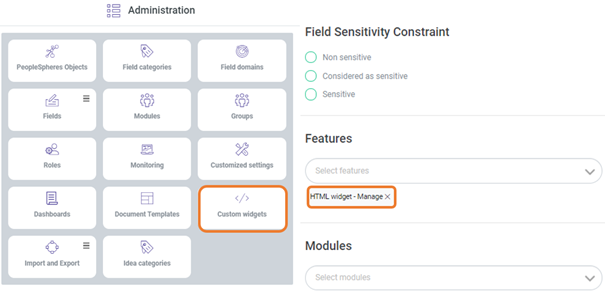
Please note: “HTML widget - View” permission grants you the permission to view all the created widgets.
Create your widget
To create a new customized widget, click on  button on the Widgets Management page.
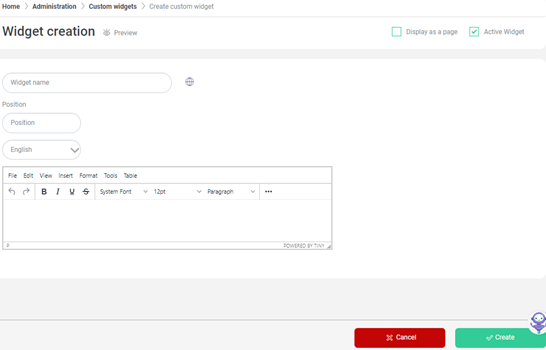
Enter a title, display position, and language for your widget. Add your content. Click on “Create”.
Please note: refresh your page to view your new widget.
Share your widget
To make your widget accessible, add the following permission: "HTML Widget - [WIDGET NAME] - View" in the required role.
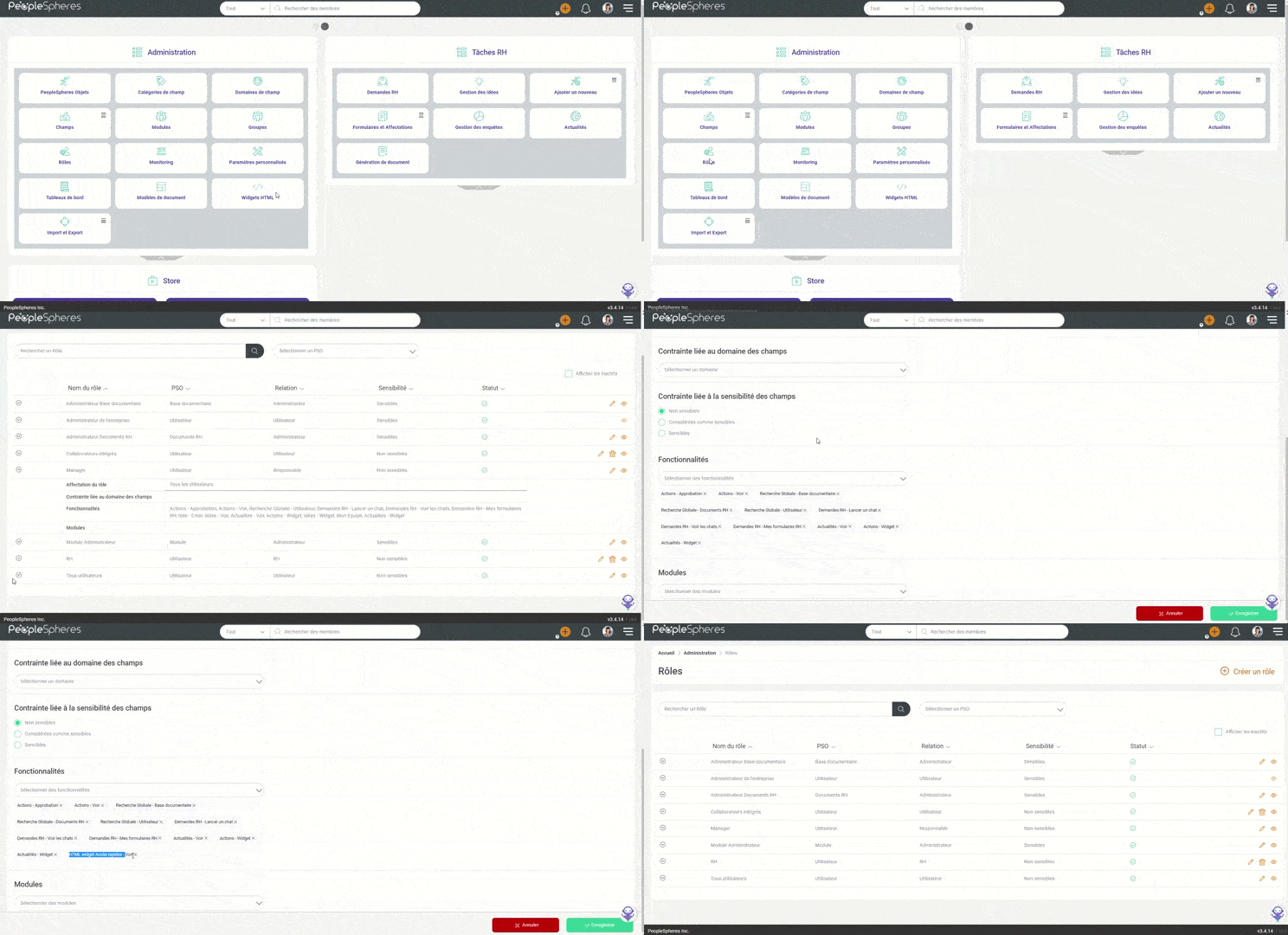
For example: Celine creates a "CSE Report" widget available to CSE members.
After creating the widget, she must go to the "CSE" role to add the widget to the members.
This allows you to create document widgets by population:
- By role (for example: documents for your managers or for new employees)
- By legal entity / establishment (for example: documents dedicated to "France")
- etc.
Provide a service to collaborators: "Quick Access"
The aim is to offer collaborators a widget composed of shortcuts to useful tools / sites to help them.
To create this widget, you need:
- URLs of the websites you want to redirect to.
- Visuals to promote your content (for example: logo, icons, etc.)
Here is the type of output you can get in about 15 minutes (collaborative view):
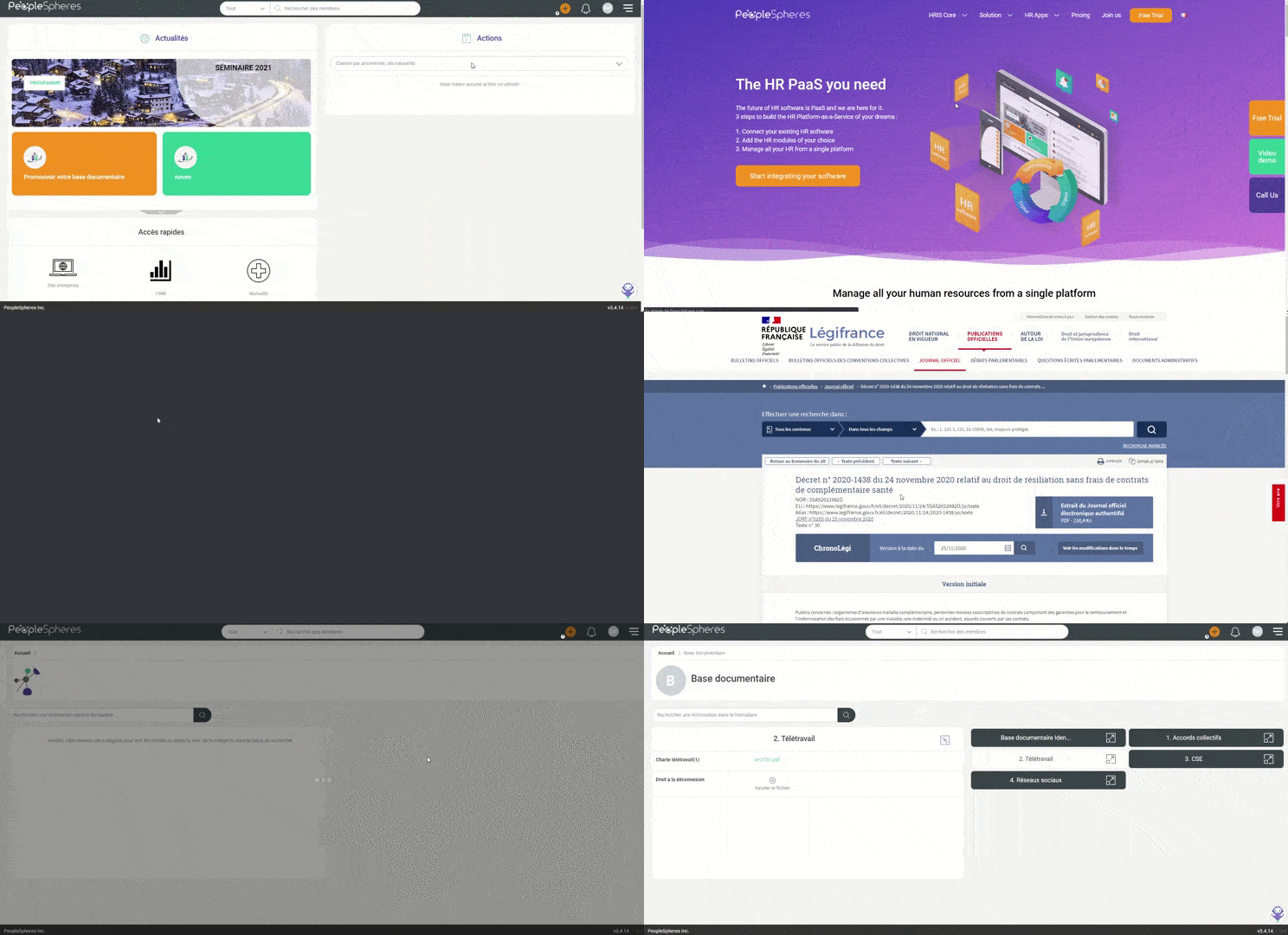
Here are the steps to be followed for this:
1/ Create a table
2/ Place the required visuals
3/ Click on "Preview" to check the display
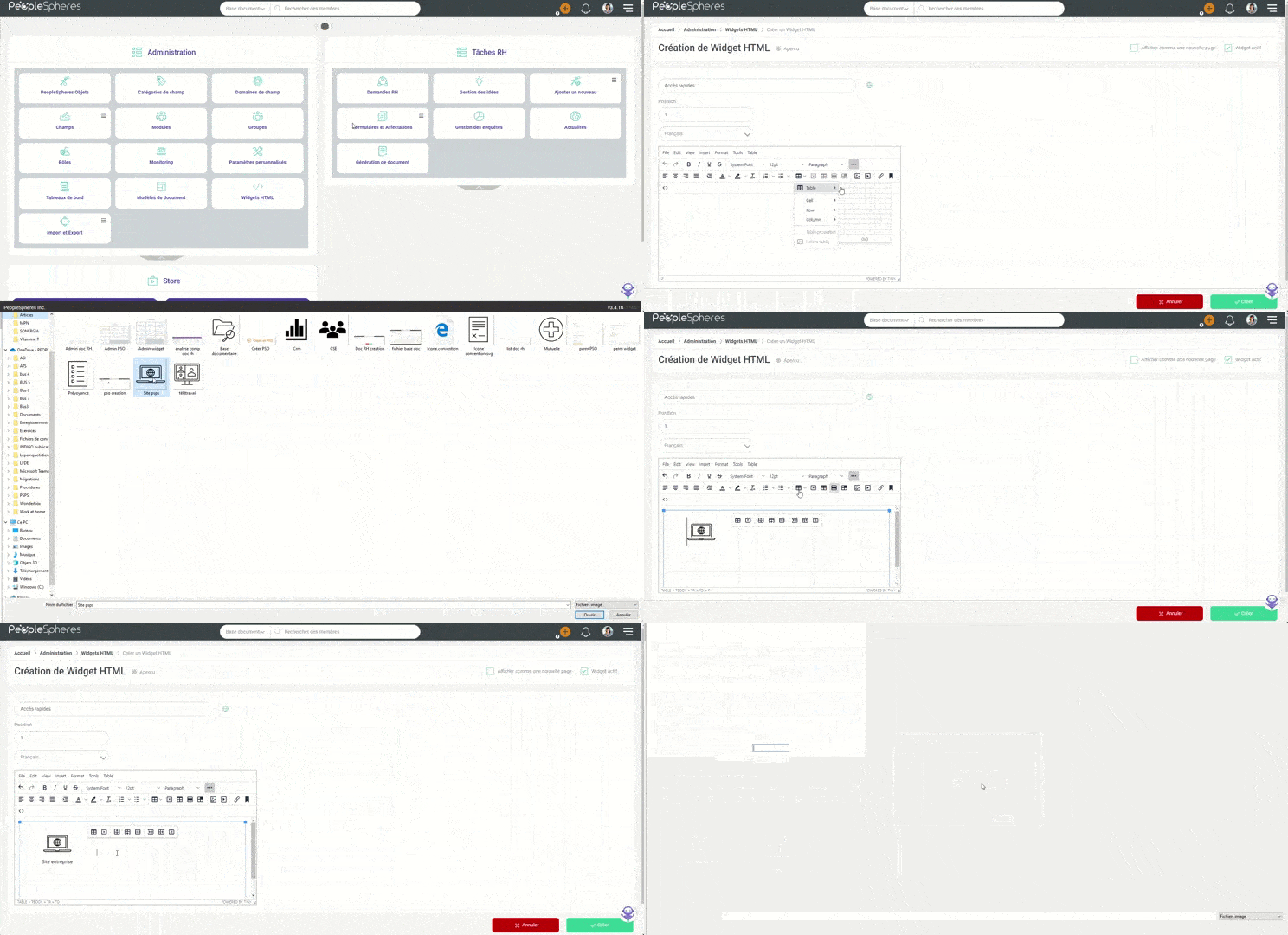
4/ Add a redirection link when the image is clicked
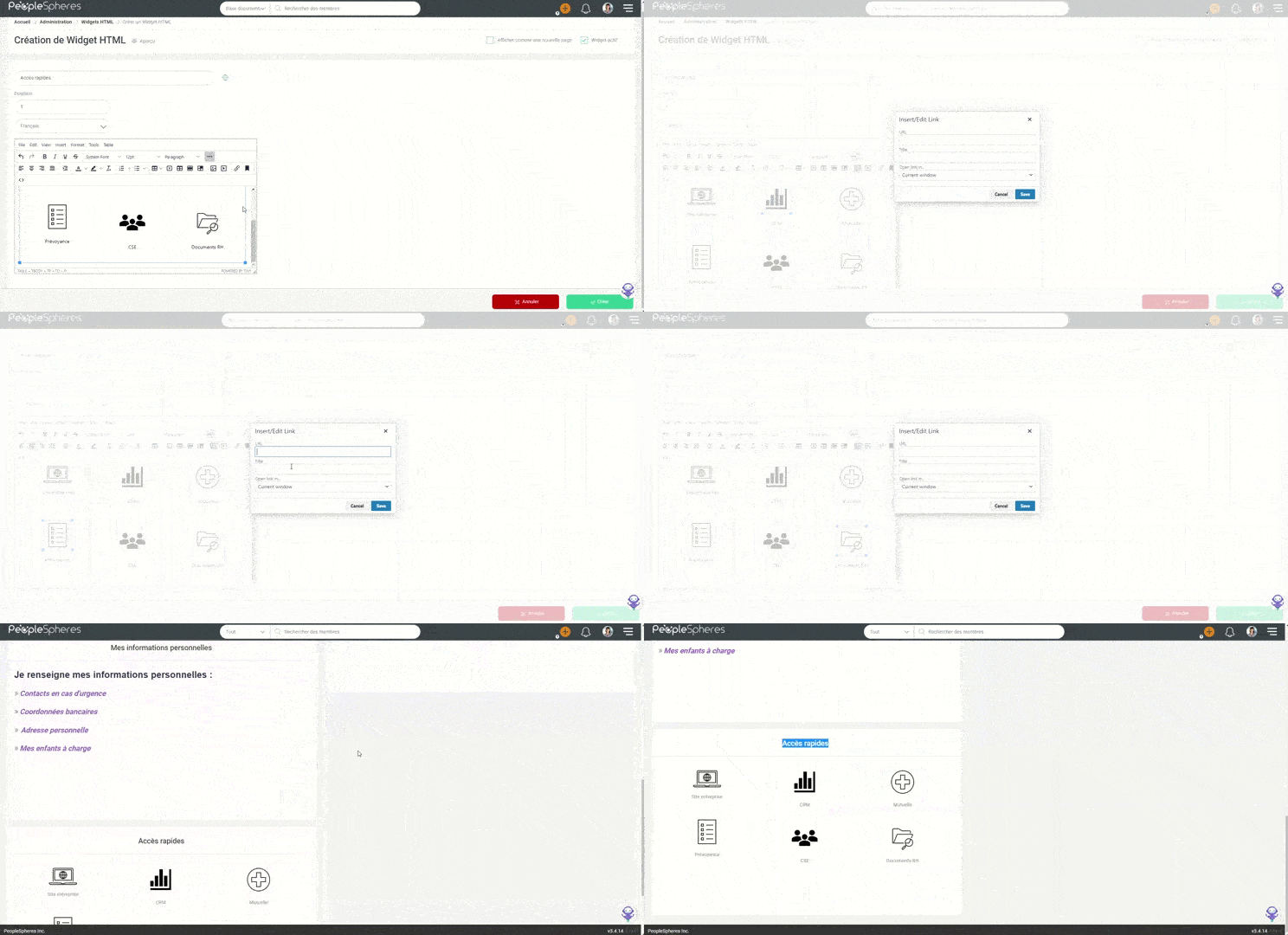 To reuse this template, copy and paste the following code and integrate it using the
  button.
<table style="border-collapse: collapse; width: 99.8691%; background-color: #ffffff; border-color: #ffffff; border-style: none;" border="1">
<tbody>
<tr>
<td style="width: 31.3819%;">
<p style="text-align: center;"><a href="https://peoplespheres.com/" target="_blank" rel="noopener"><img style="display: block; margin-left: auto; margin-right: auto;" src="https://rest-preproduction.monportailrh.com/storage/demojdy/files/12/53/B5gVVjYUIeeGsKpK7Wr4f7FPaI4FNmE7MEvpiaOX6051bd0d961c5.png" alt="" width="96" height="96" /></a>Site entreprise</p>
<p> </p>
</td>
<td style="width: 31.5277%; text-align: center;">
<p><a href="https://fr.wikipedia.org/wiki/Gestion_de_la_relation_client#Fonctionnalit%C3%A9s_d'un_CRM" target="_blank" rel="noopener"><img src="https://rest-preproduction.monportailrh.com/storage/demojdy/files/ec/7e/CkifCeGwj0lQb8G58sOqElLjj8vqvGVmdFWCpNmQ6051bd4684000.png" alt="" width="96" height="96" /></a></p>
<p>CRM</p>
</td>
<td style="width: 31.5277%; text-align: center;">
<p><a href="https://www.legifrance.gouv.fr/jorf/id/JORFTEXT000042558814" target="_blank" rel="noopener"><img src="https://rest-preproduction.monportailrh.com/storage/demojdy/files/ed/ef/Nup0UpQ0jpQ5qqLzUeO5fytLJfHkVCjiOwlBFukt6051bd57b8ee0.png" alt="" width="96" height="96" /></a></p>
<p>Mutuelle</p>
</td>
</tr>
<tr>
<td style="width: 31.3819%;">
<p style="text-align: center;"><a href="https://fr.wikipedia.org/wiki/Pr%C3%A9voyance_collective" target="_blank" rel="noopener"><img src="https://rest-preproduction.monportailrh.com/storage/demojdy/files/2c/a1/hlAH8i7XKxTyVRSDUlWydsy1d8ZFIXTFsxSQlzyV6051bd6782f73.png" alt="" width="96" height="96" /></a></p>
<p style="text-align: center;">Prévoyance</p>
<p> </p>
</td>
<td style="width: 31.5277%; text-align: center;">
<p><a href="https://travail-emploi.gouv.fr/dialogue-social/le-comite-social-et-economique/article/cse-definition-et-cadre-de-mise-en-place" target="_blank" rel="noopener"><img src="https://rest-preproduction.monportailrh.com/storage/demojdy/files/22/a6/IAtxCJvRwEPxCFTycLRrtB593fTRfgC4ji0xeS7U6051bd7b536f6.png" alt="" width="96" height="96" /></a></p>
<p>CSE</p>
</td>
<td style="width: 31.5277%; text-align: center;">
<p><a href="../userprofile/16" target="_blank" rel="noopener"><img src="https://rest-preproduction.monportailrh.com/storage/demojdy/files/46/6d/Nj4095r5kXoxp5f8fb4E7Ry28naK3WtMJbW0xEUS6051bd8951eee.png" alt="" width="96" height="96" /></a></p>
<p>Documents RH</p>
</td>
</tr>
</tbody>
</table>
Communicate: "Comments from the senior management"
The idea is to offer collaborators a widget that features all the important messages. For example: to announce a new strategy, or the HR issues for the year, etc.
To create this widget, you need:
- Content you want to add
- Visuals to promote your content (for example: logo, icons, etc.)
Here is the type of output you can get in about 5 minutes:
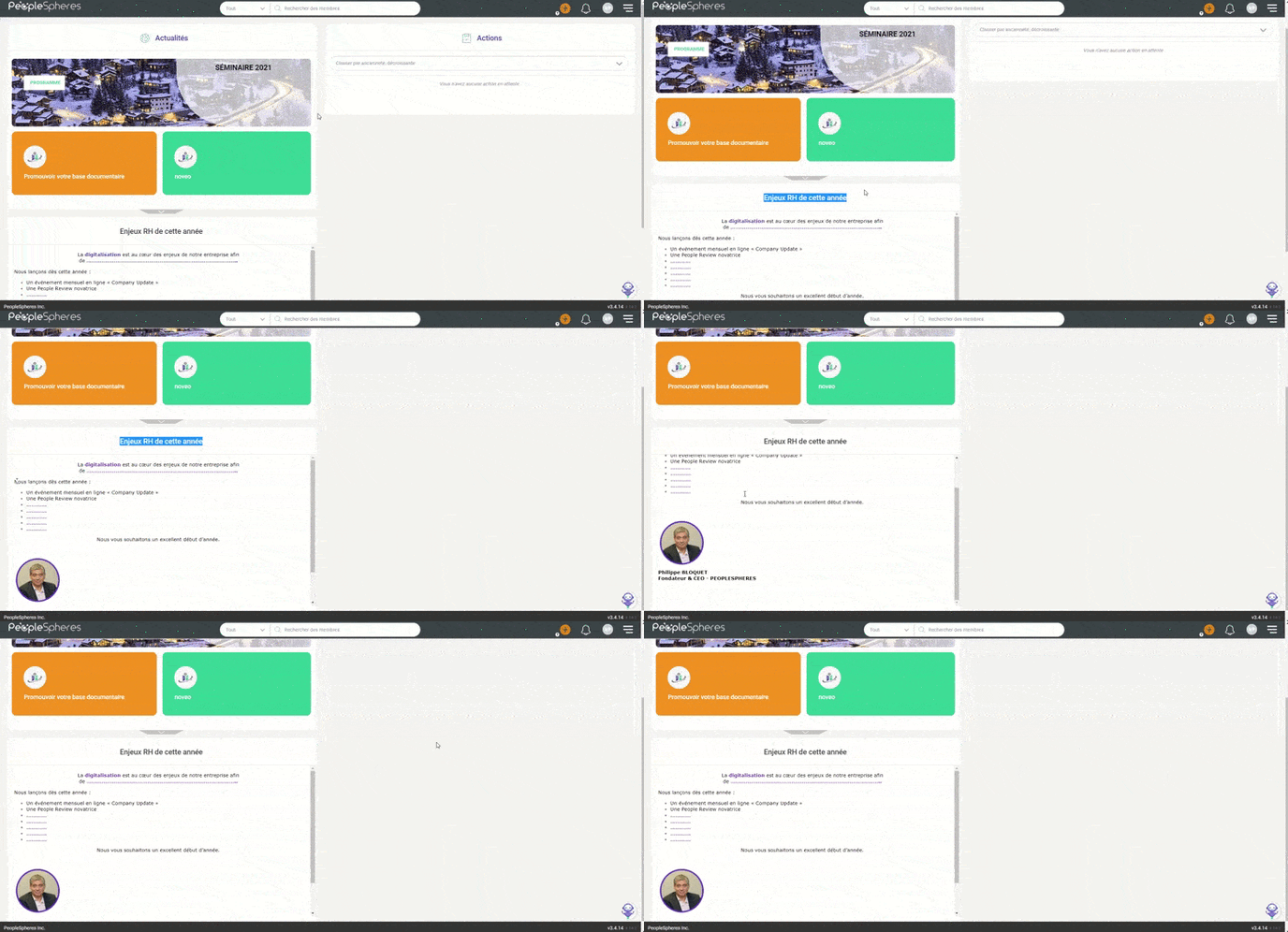
Here are the steps to be followed for this:
1/ Copy-paste your content
2/ Adapt the layout to suit your needs
3/ Click on "Preview" to check the display
Promote HR campaigns: "Co-option"
The idea is to promote a co-option campaign.
To create this widget, you need:
- URL of the career website
- Content you want to add
Please note: the method we will use depends on the career website. If the latter does not authorize you to integrate on another website, you will see "XXXXX does not authorize the connection".
In this case, contact the editor in question.
Here is the type of output you can get in about 5 minutes:
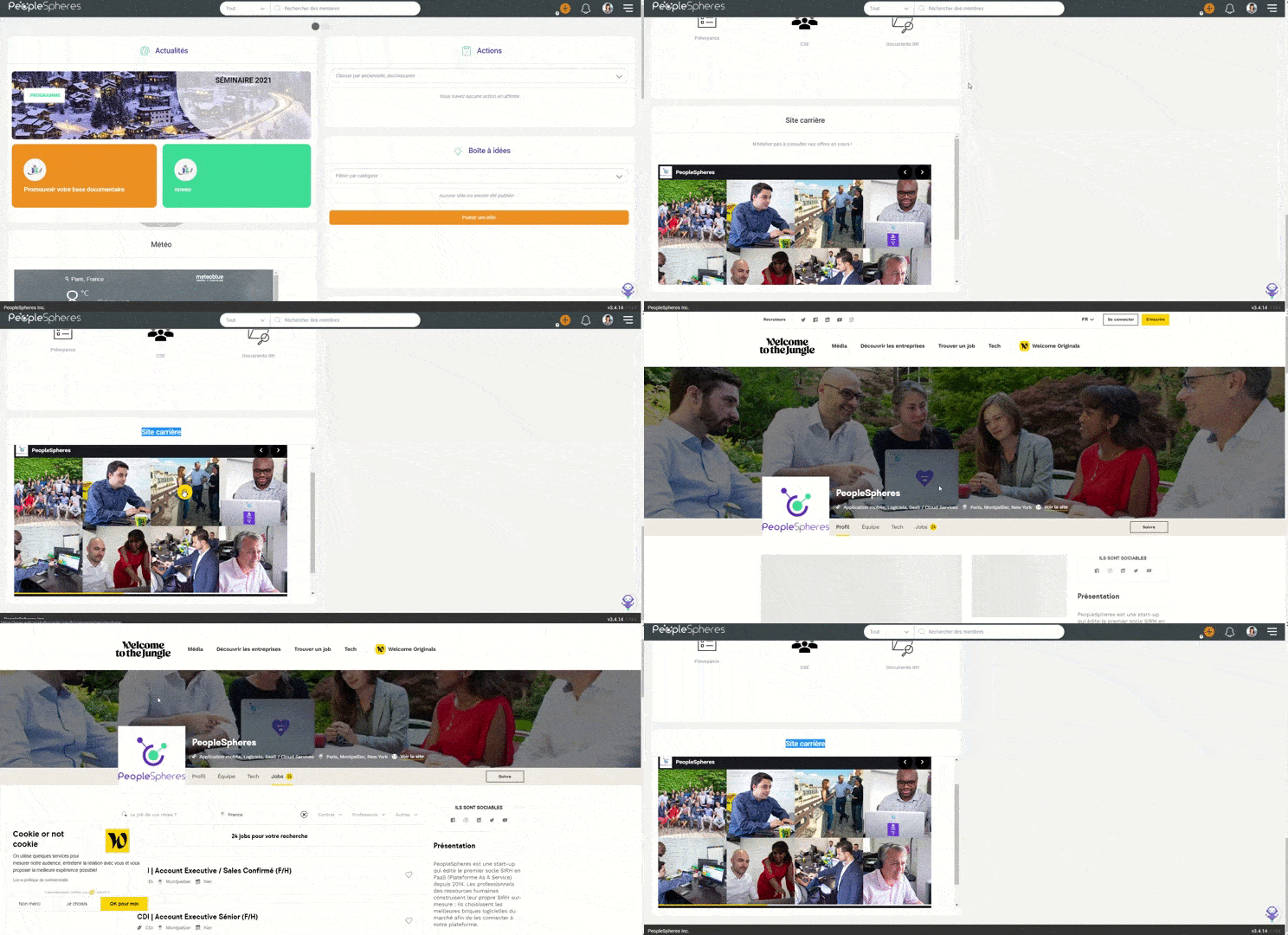
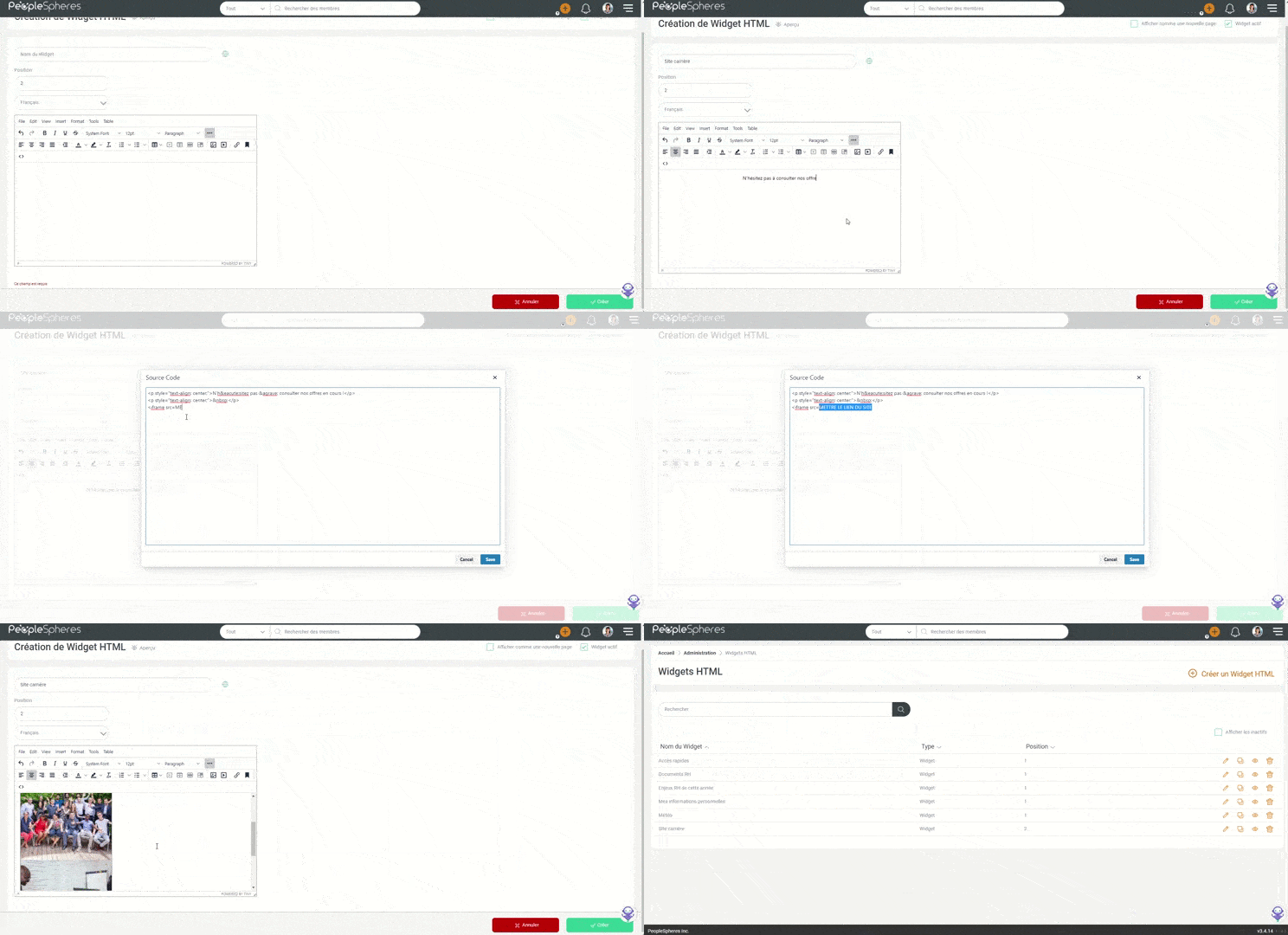
Here are the steps to be followed for this:
1/ Copy the desired recruitment website's URL.
2/ Integrate the URL in the following code:
<p><iframe src="https://LIEN DU SITE A INTEGRER" width="700px" height="900px" frameborder="0"></iframe></p>
3/ Click on "Preview" to check the display.
Promote your business: “video”
The idea is to offer collaborators a widget describing a job or a key concept of the company.
To create this widget, you need:
- Videos hosted on a video platform (for example: YouTube - private channel / Vimeo, etc.)
Here is the type of output you can get in about 5 minutes:
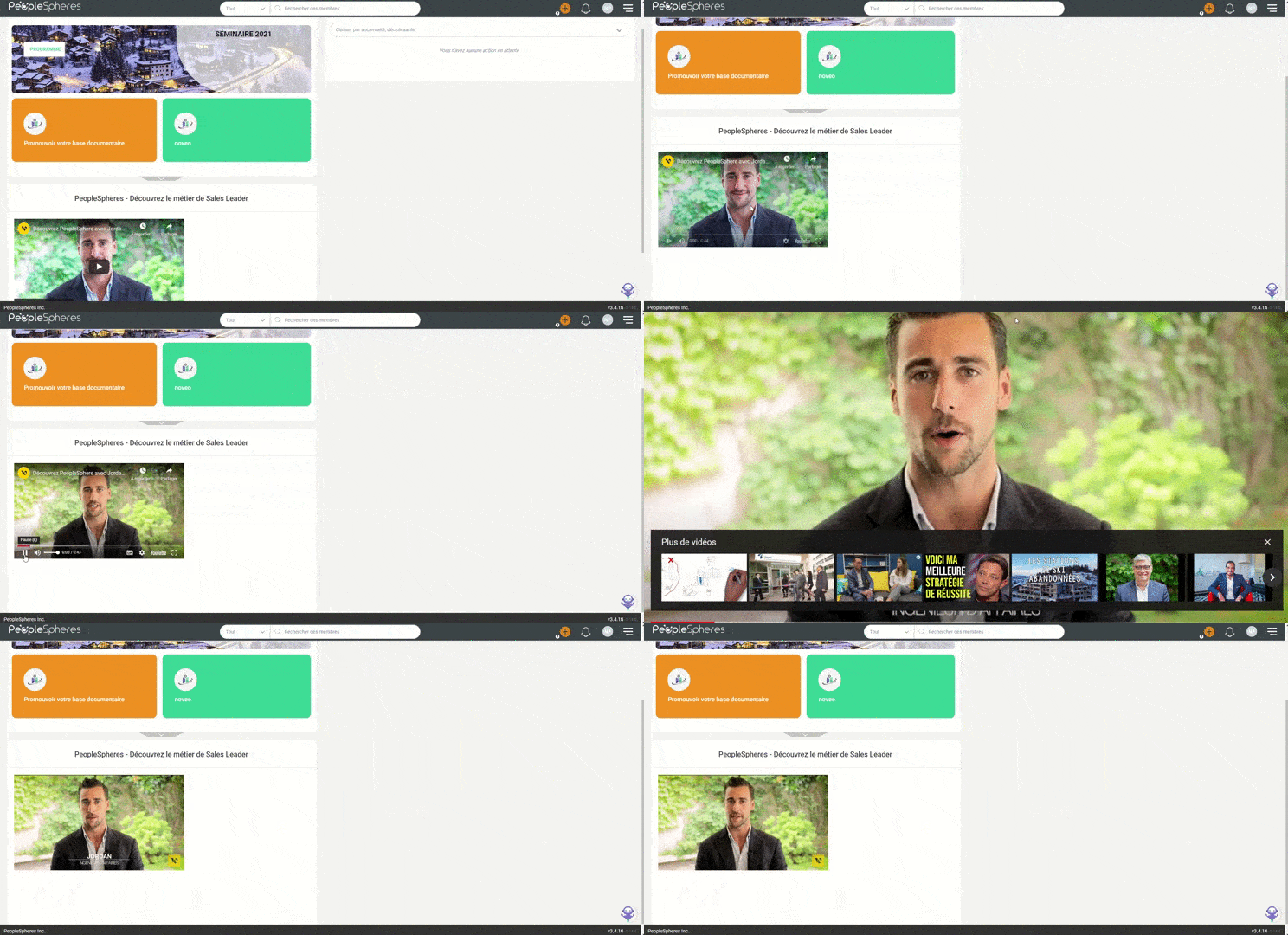
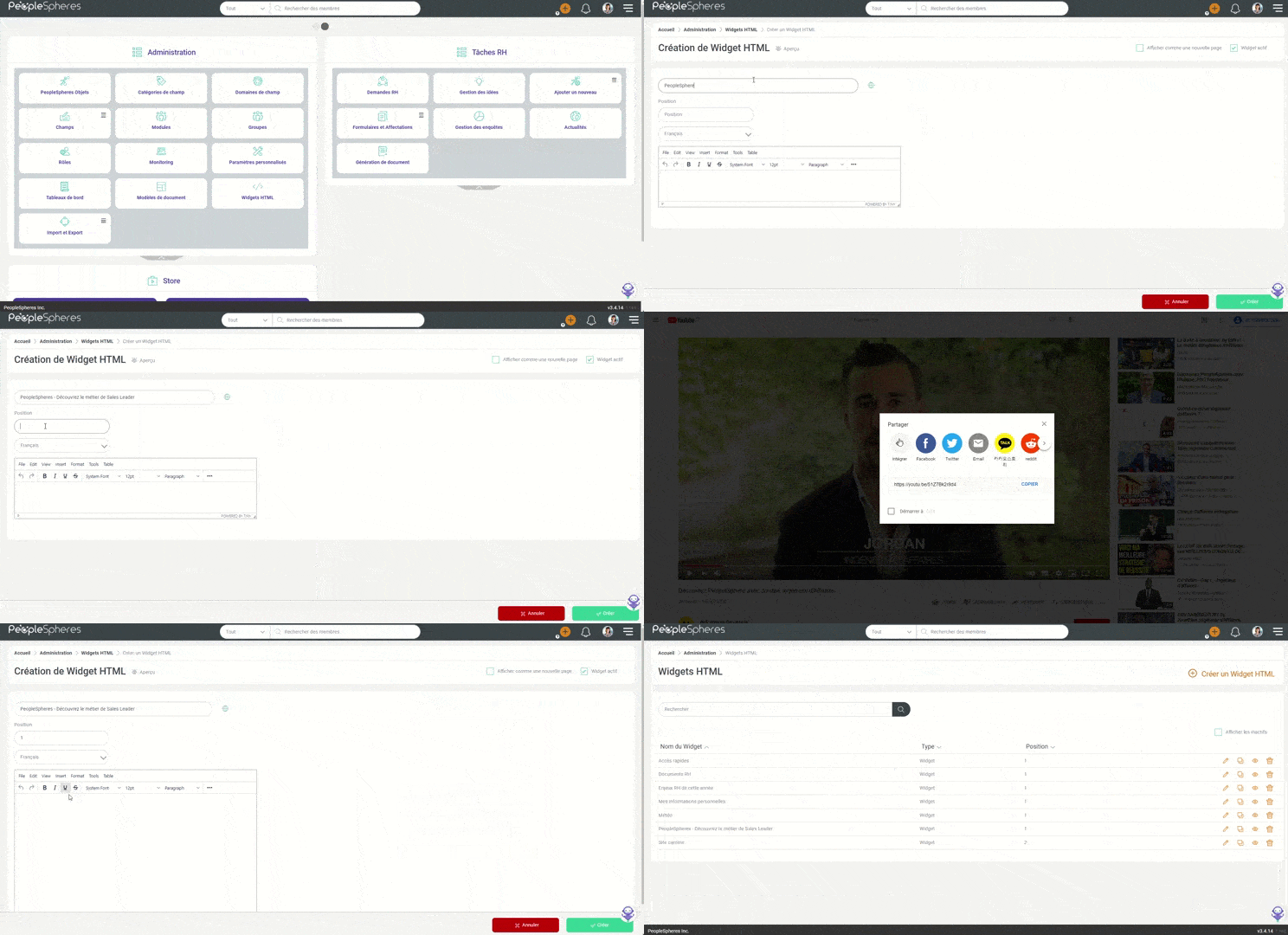
Here are the steps to be followed for this:
1/ Copy the link provided by the platform
2/ Paste this link in the widget's "code"
3/ Click on "Preview" to check the display.
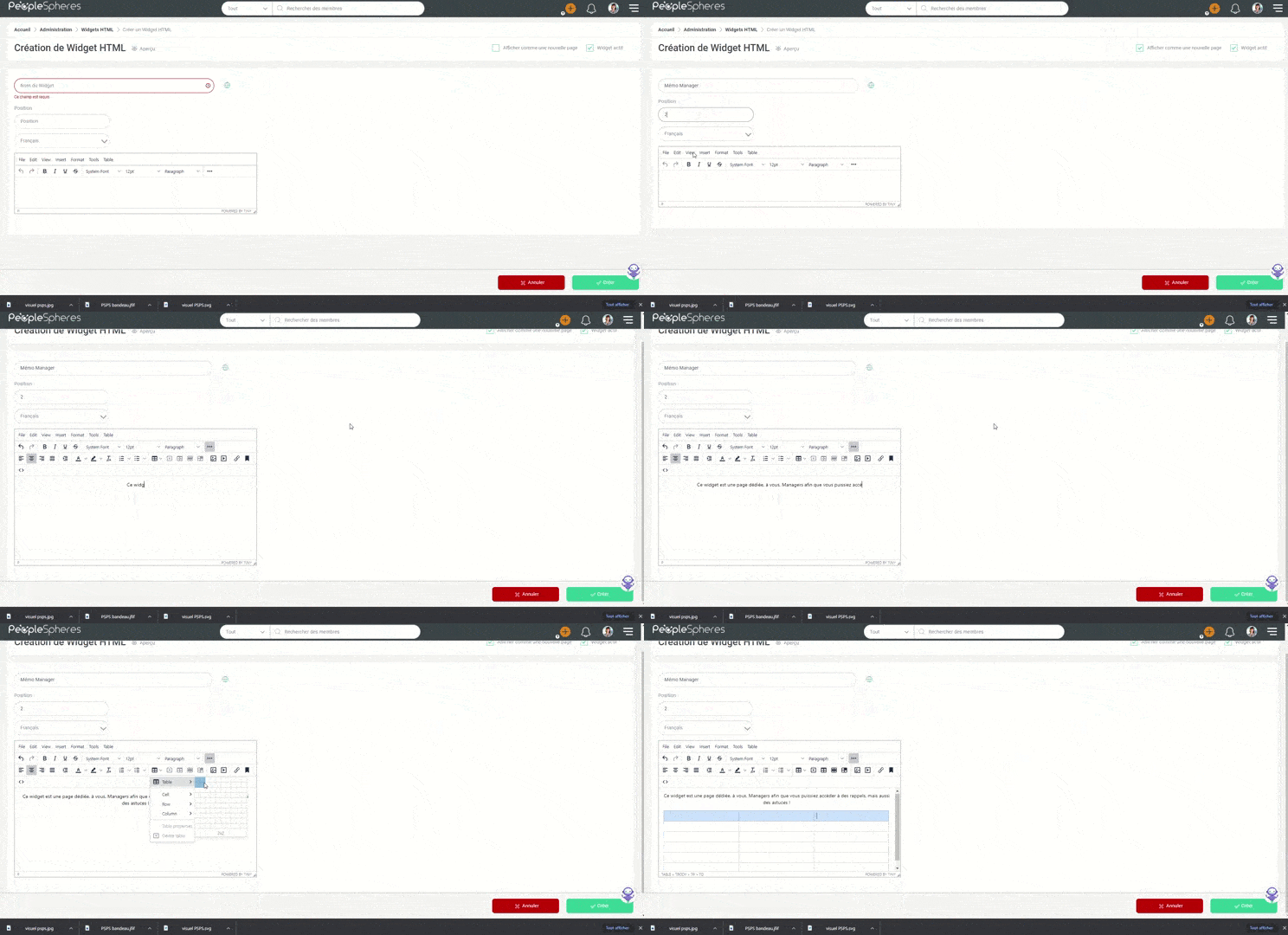
Help your managers: "Memo Manager"
The idea is to offer your managers a "full page" widget with HR tips and instructions.
To create this widget, you need:
- Content you want to add
- Visuals to promote your content (for example: logo, icons, etc.)
Here is the type of output you can get in about 10 minutes:
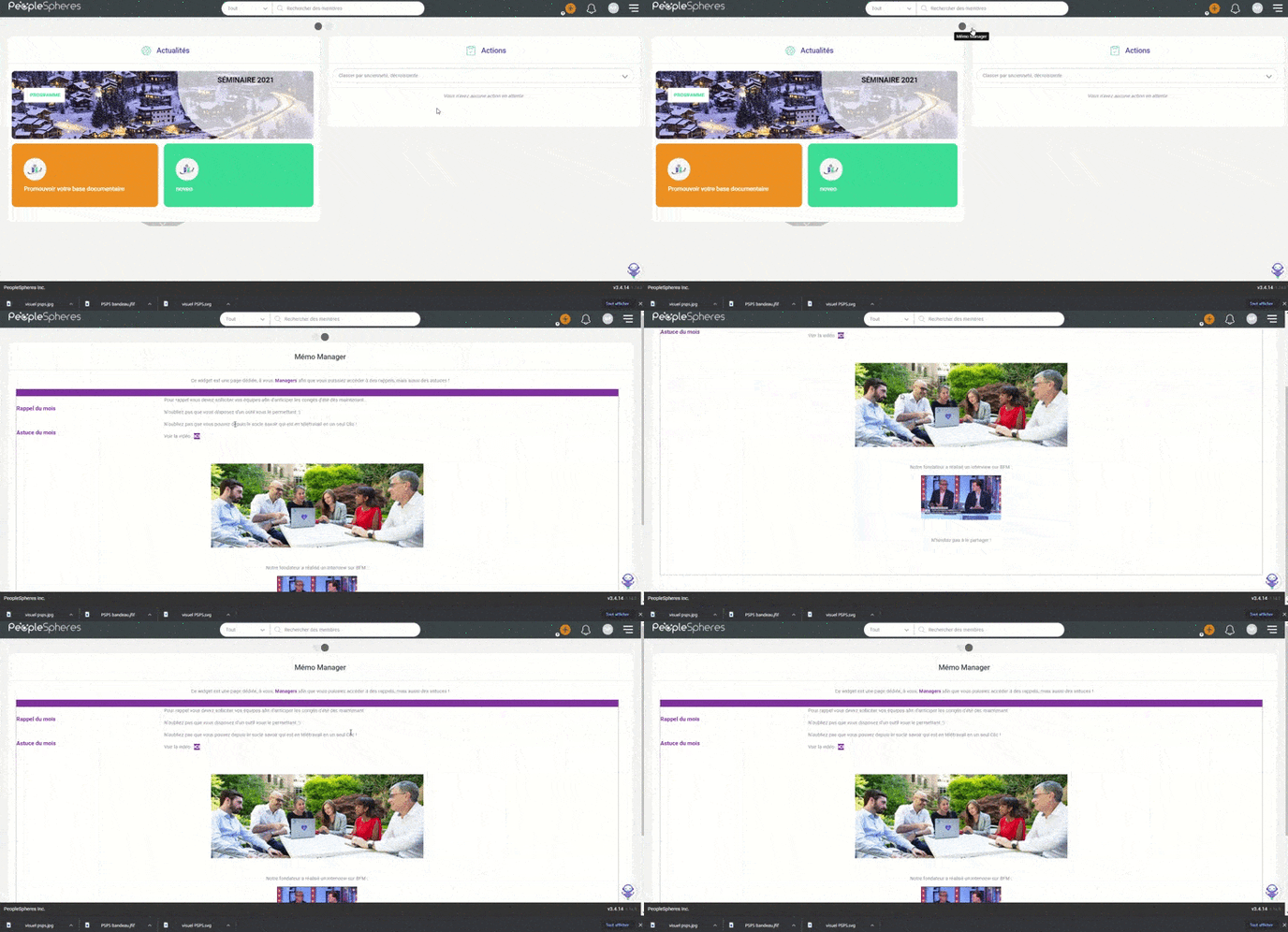
Here are the steps to be followed for this:
1/ Create a table
2/ Add your content
3/ Place the required visuals
4/ Click on "Preview" to check the display
Feel free to combine formats to make your content more attractive.