
Learn to create documents and publish templates for your collaborators
Index
The “Document Generation” feature is divided into two parts:
- document template creation
- document generation, that is adding it to one or several user profile(s).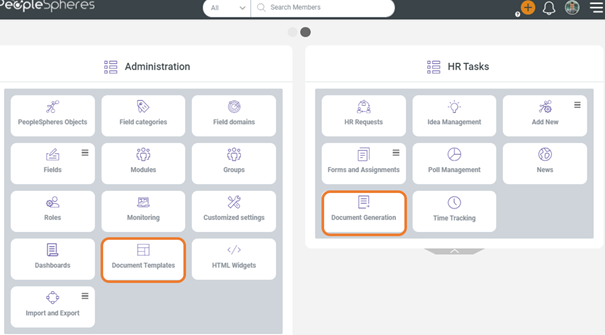
The first feature is accessible with the "Document template - Manage" permission, while the second feature is accessible with the "Document generation - Manage" permission.
Create a document template
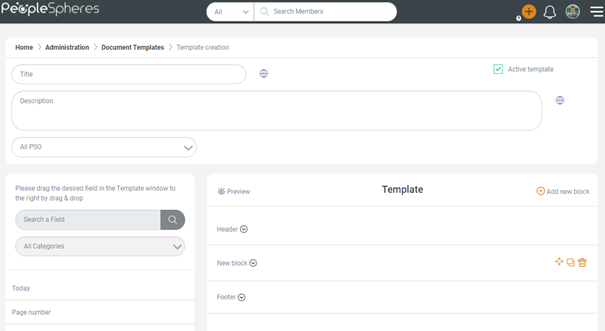
To create a new document template, click on  button on the Document Template Management page.
Enter a title, a description and select the PSO for which you want to create a document template. Proceed to preparing your document.
Headers and Footers

The document has three distinct parts: the header, the text body (called "New block" by default) and the footer.
Both the header and the footer will be displayed on all pages of the final document. However, it is possible to omit them by simply leaving them blank.

Document Body
The document body is composed of blocks.
It is possible either to use a single block for the whole document, or to add several blocks to use the same document for several populations.
For this, click on  and edit each block.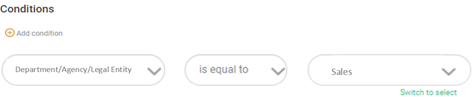
The first block cannot be edited.
For example: Céline wants to generate an explanatory document for expense reports, with some differences depending on whether the collaborators are in the "Sales" department or not.
She will therefore draft her document, with the first block common to all employees, then a block with a condition "if department = Sales" and a block "if department =/= Sales".
Everyone will have their own customized document depending on whether they are in the sales department or not.
The  button lets you add page breaks automatically.
This option is only available for the text body (not available for the header and footer).
Adding tags
It is possible to add tags that will be completed with the collaborator's data during the publication.
For example: Céline drafts a "work certificate" document to be generated at collaborator's request.
She can insert tags such as {contract start date}, {contract type}, etc.
These tags will be replaced by the collaborator's data, "CDI" - "04/02/2020".
There are two specific tags that are proposed in all cases:
 is replaced by the date (of the document generation).
 is replaced by the page number.
Preview
The  button lets you preview the document as it will be generated in the PDF format for the collaborator.
 Preview generates a document without replacing the tags with real data, which can affect your document's final layout.
For documents in which visual presentation is important, it is recommended to test the preview on a user anyway.
List fields
List fields are fields that can have several values for a same field (for example: the "Children" field allows you to add several children).
When a List field is included in a document, only the last value will be displayed in the generated document.
For example: Céline creates a “work contract” document that has the {salary} tag.
The “salary” field is a List field, with previous values (previous salaries).
The generated document will have the most recent salary.
Display all the field values by clicking on the  button.
For this, select the field for which you want to display all the values, and click on  .
.
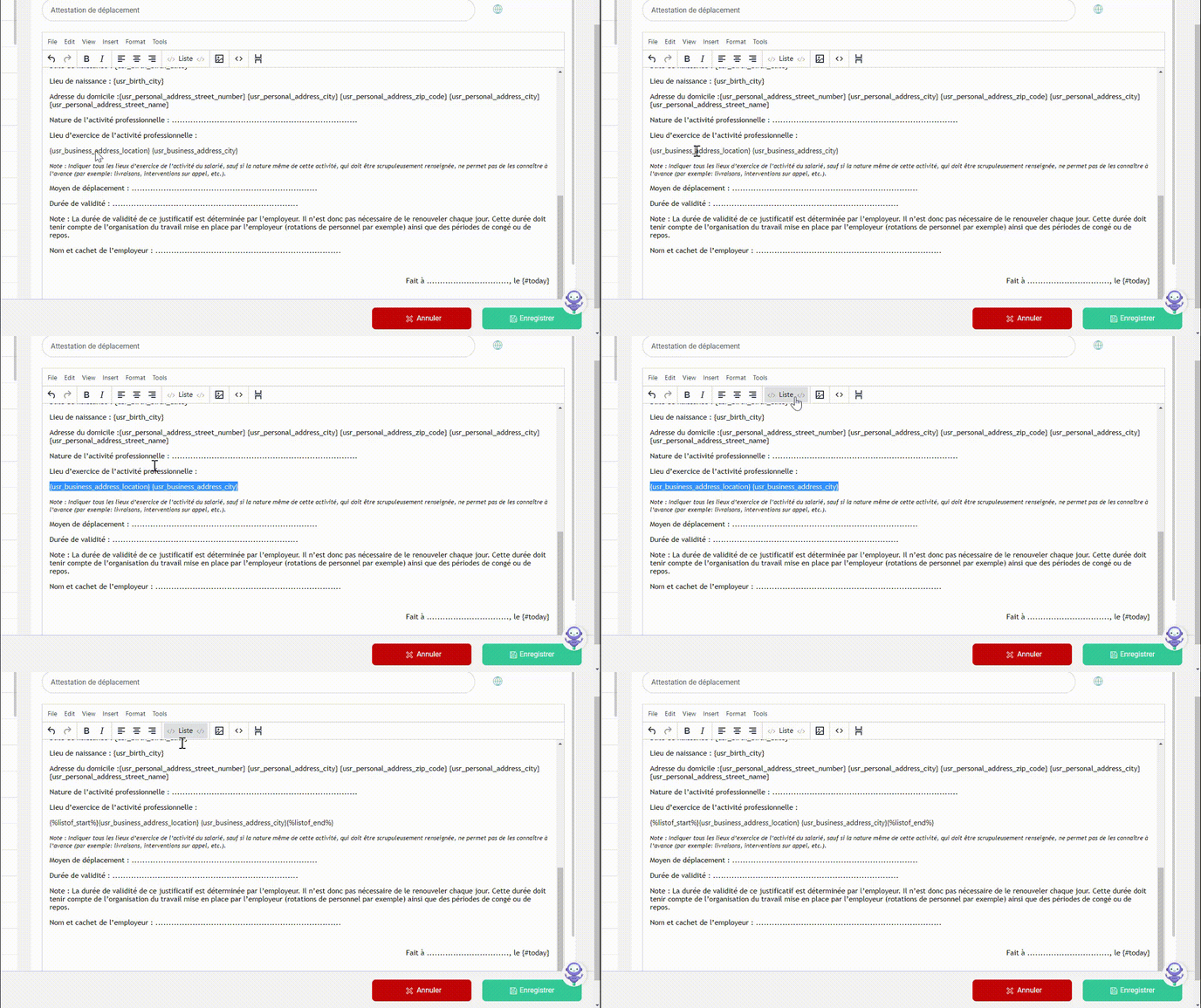
In the document, the field will appear in quotes.

Document Generation
Create a new Document Generation
To create a new Document Generation, click on  button on the Document Generation Management page.
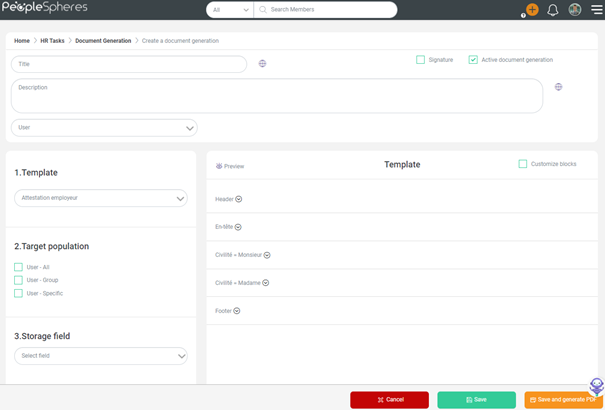
Enter a title, a description and the PSO for which you want to generate a document. It is necessary to select:
- The template to be published (check the previous step),
- The population for which the document will be generated,
- The document storage field.
For this 3rd step, it is therefore necessary to create a field in which the document will be stored, and which must be of "File" type.
You can customize the document just before sending it. For this, click consecutively on  then on
  besides the block you want to edit.
For example: Céline wants to generate a "Work contract" document and replace the salary completely.
The  button allows you to delete all the edits made.
Once all the settings are selected, click on  to publish the document, or on
  to save your work without posting it.
Using existing document
Do you want to re-generate a document that you had previously generated?
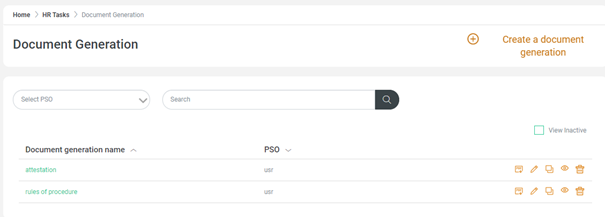
For this, it is not necessary to create a new Document Generation. Click on  to edit an existing document, modify the target population and generate, or on
  to generate the same document having the same conditions as the last time.
Recurrent Document Templates to generate
- Work contract
- Rules of procedure
- Memos
Attestations for the purpose of:
- Mutual affiliation certificate
- Housing 1% certificate
- Standard employer's certificate (no trial period, no termination)
- Compensation certificate