
Discover how to customize your HRIS
Customized Settings feature lets you modify your HRIS design.
It can be enabled for a user from their Role by adding Customized settings permission.
Access Customized Settings
 A user can access this feature from the HRIS administration menu on the second page.
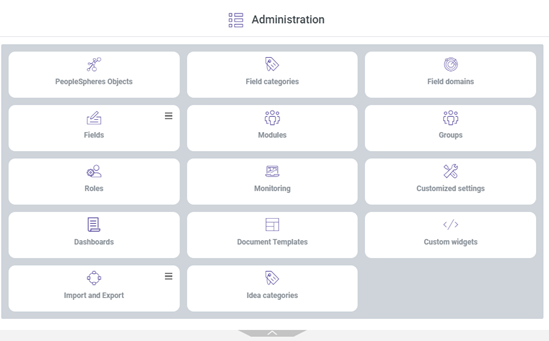
The customization page has two functions: the first, to modify the logout URL as well as your SSO information for your HRIS, and the second, to modify your HRIS colors and logo.
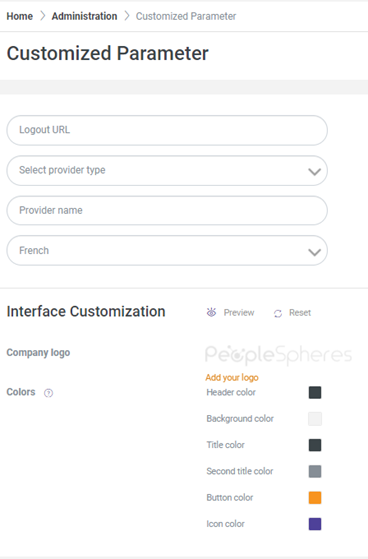
Modify the logout URL
You can customize the address to which you will be redirected when you log out. For this, enter an HTML address in the "logout URL" field:
For example:
SSO configuration
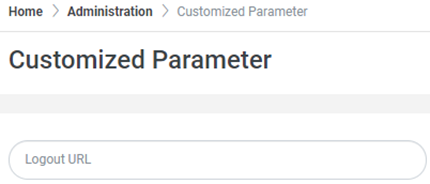
SSO configuration
To configure your SSO, please contact your consultant in charge of implementing your HRIS system or support team.
Customize your interface
IMPORTANT: At any time, click on  to get a preview of your home page.
Click on  to reset your home page modifications.
Modify the logo
To modify your Core HR’s logo, click on the logo already displayed (or the default Peoplespheres logo), then select your logo using the file search tool.
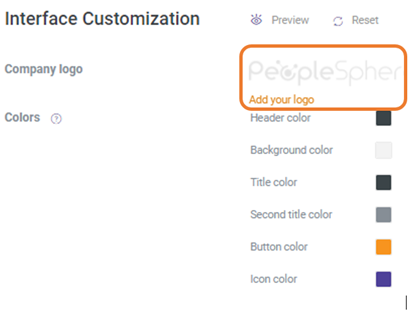
You can insert logos with transparent areas in either GIF or PNG format.
Click on  to get a preview of your home page with your logo.
For example:
Once the logo is selected: 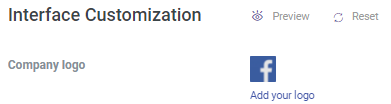
Click on preview on the home page: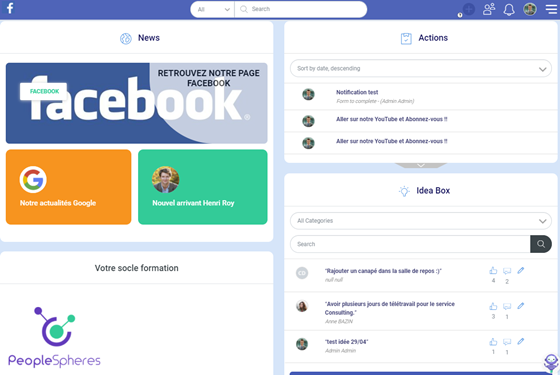
Modify your HRIS platform colors
Click on  button to display a new window explaining the color choices.
To change the colors, click on the predefined colors for the item you want to change.
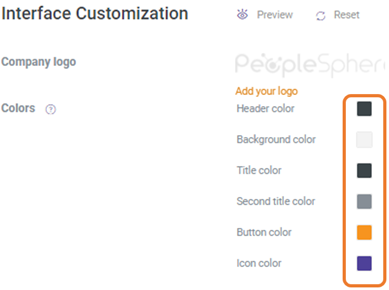
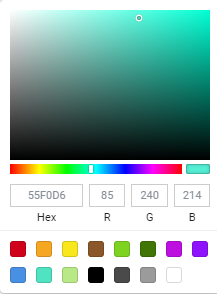
You can enter a hexadecimal code corresponding to the desired color or choose a color using the palette.
Header color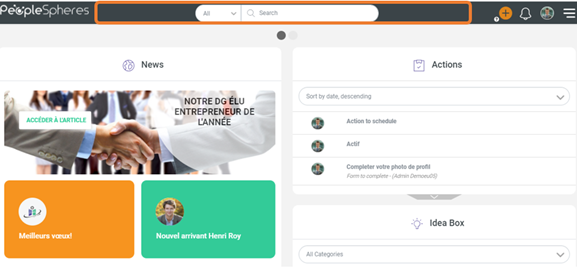
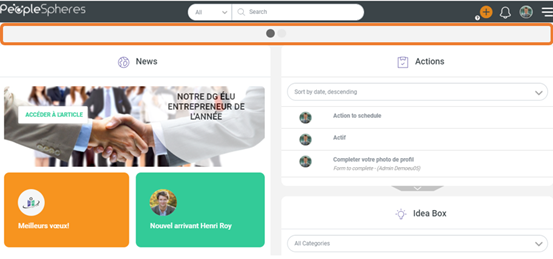
Background color
Title color
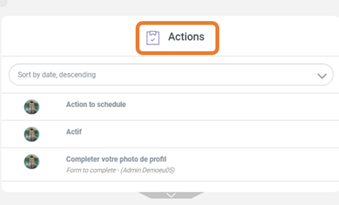
Second title color
Button color


Icon color : define also the color of simple news.

TIPS AND BEST PRACTICES
- Use
 if you are not satisfied with the result.
 - Logos can have transparent areas. (PNG or GIF files).
- Click onto get a preview of your home page.