This guide will show you how to add users to a training session Roster, how to mark their presence and their grade for the sessions.
Objectives :
-
Update the status of participants in a training session based on their presence or absence once the training has finished.
-
Understand the impact of managing sessions in 1 or more parts
- Add a document (training certificate)
- Understand the impact of having Required Evaluations
Sending the Roster - Session with One Part
Once the session has been completed, it is important to send the roster (sending the final list of participants) to make sure that the session is marked as completed on the users' transcripts.
To do this, navigate to the roster, and then to the Attendance and Scoring tab:
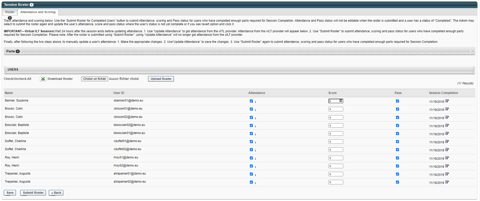
You can mark each participant as having attended the session (or each part if your session had several parts) as well as adding a Score, and showing if the participants passed the session. By default, all options are checked.
To submit the roster, click the Submit Roster at the bottom of the screen.

You can also make changes to the Attendance and Scores and return later by clicking Save.
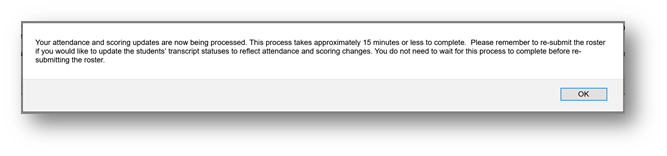
Submitting the Roster takes around 15 minutes to take effect, so check the transcripts later to see the change in status :
Submitting the Roster - Session with Multiple Parts
When a session has more than one part (it is held over several days for example), the Presence column in the Presence and Score tab will have as many check boxes as parts. You need to check each box for each part. If the user was present for all the parts of the session, all the check boxes in the Presence column should be checked.
Adding a document
Go to a training session and click on the character icon to manage the list of participants.
In options click on the attachments icon (second icon):

You are redirected to the participant's transcript, at the very bottom of the page an "Add attachment" button allows you to select the document you wish to add.
Once the action is completed, the attachment appears, it is also visible to the employee.
Required Evaluations
Required or not ?
Whether or not the evaluation is required will impact the status of the participant
after the roster has been submitted.
Not Required
On the last day of the training, the link "Evaluate" appears on the employee's transcript. The employee can then click on it to complete the evaluation.
When the Roster is submitted, the participant's status changes to "Completed", as does the "Evaluate" link. The evaluation can be launched from the "Completed" tab of the transcript.

Required
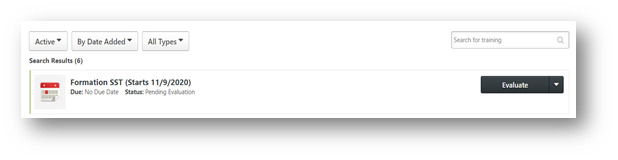
The course remains in the "Active" tab until the evaluation is completed or expires (30 days) even if the list of participants has been submitted. The evaluation can be started from the "Active" tab of the transcript, and from the learner's home page. The user has a status of "Pending Evaluation" until the evaluation is completed or expires.