
This guide will show you how to create and edit materials and make them visible to users when searching in the catalog.
Materials are training objectifs, just like sessions or videos. They can be assigned to users and searched in the catalog.
A material is a training object that can be of two types:
- A URL (allowing redirection to a site, intranet, etc.)
- A file (doc, docx, xls, xlsx, ppt, pptx, pps, ppsx, pdf, jpeg, jpe, jpg, gif, zip) with a maximum size of 50 MB.
Create Material
Navigate to Learning Administration > Catalog > Learning Objects > Materials.
Click on the button  to complete the 3 sections :

General tab
- Title: Mandatory field. Fill in the title of the Material here. This field can be translated into different languages using the icon.

- Material type: Mandatory field. Define the format of the resource (Word, Excel, PowerPoint, PDF, URL, or another document).
- Provider: Mandatory field. Choose you company name from the list.
- Training hours: Optional. Indicate here the estimated duration of realization.
- Description: Optional. Add the description of the training for the users.
- Resources: Optional. This is not the material you are creating but documents that you can associate with the training object (training program associated with an event).
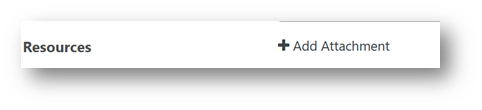
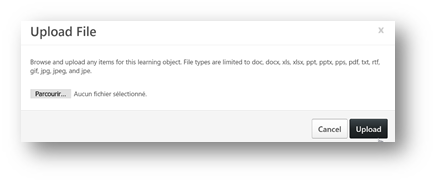
- Click add attachment, then select the document on your computer an click Upload:
- Give the document a title and define its visibility, and click the Floppy Disk to save:

- Click add attachment, then select the document on your computer an click Upload:
- Keywords: Optional. Add words referring to your material. This will make it easier for users to find this material through the training catalog.
- Available languages: Optional. Languages available for the resource.
- Default language: default display language, it corresponds to the language of the administrator's environment.
- Subjects: Mandatory field. The subjects allow the training to be linked to one or more subjects. End users will be able to search for trainings by topic. Click on "Add a subject" and choose at least one subject. You can search for the subject in the search bar.
- Credits: Optional It is a quantitative measurement system issued by higher education institutions. (Ex: a Master’s degree corresponds to 120 credits).
- Image of the resource: Optional. Allows you to add an image to the material.
- Source of the resource: Mandatory field. It is in this section that you will insert your document or URL type material.
- URL: click on the "URL" button and enter the address of the site to which you want to direct the employee
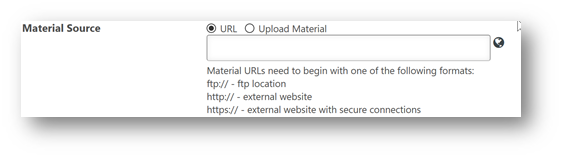
- Document: to integrate a document select "Upload Material" then click on "Choose a file" and on "Upload"
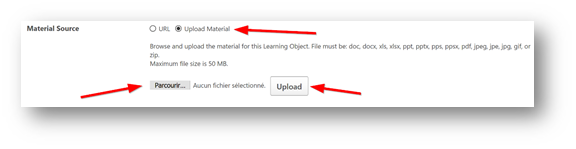
- Once loaded, select the language of the document, and save by clicking on the floppy disk
- URL: click on the "URL" button and enter the address of the site to which you want to direct the employee
- Prerequisite: Optional. Allows you to define the training to be carried out beforehand before being able to access this online course.
Click Next.
Availability Tab
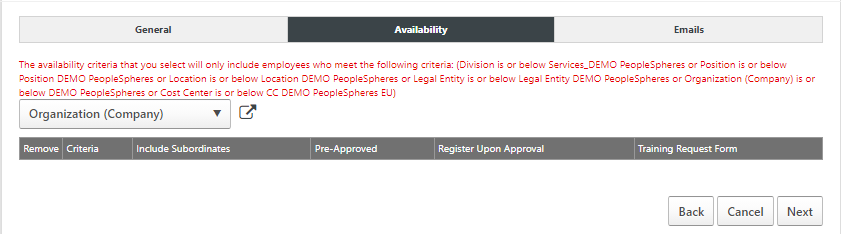
You can select the population or populations to whom you want to make this material VISIBLE in your catalog.
WARNING: DO NOT SELECT "ALL USERS"
So that all users in your company can access and subscribe to the material in the catalog, select "Organization" in the drop-down menu then click on the blue square with the arrow to select the name of your company.
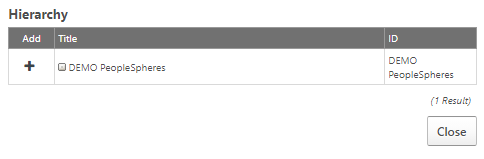
In the pop-up, click on the plus next to the name of your company, then click on "Done"
Tip: If you want to integrate documents that can be viewed by all without validation by the manager and / or HR: check the “Pre-approved” box, so the employee can access the material without triggering the validation circuit.

Emails tab
You cannot define emails, because these are the emails defined by default that will be triggered, namely:
- Registration request email
- Material registration confirmation email.
Click on Save to finalize the creation of your material, it will then appear in your administration page.
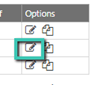
Good to know: To modify a material, click on the icon in the Options column: you can then make minor modifications, but you cannot modify the document or the defined url.
View the material in the catalog
In the Learner Home, in the search bar, enter the name of the material created and click on Enter, to check that the training is clearly visible in the catalog.
Good to know: the visibility of the object in the catalog is not necessarily instantaneous, please allow up to thirty minutes.